AI Agent を Database と API に接続する
API を Squid に接続し、database に write して packing list を作成する agent を構築します
構築するもの
- 指定する zip code と travel date に基づいて、vacation に持っていく item の list を作成する fullstack app。
- app は external API を使用して予測 weather を確認し、weather に基づく packing item list を作成して、これらの item を database に write します。
この tutorial では、次の feature を使用します。
| AI Ability | Internal Connector | External Connector | Backend Function |
|---|---|---|---|
| AI Functions | Built-in Database | HTTP API | Executables、Triggers |
この application は、指定された location と date の forecast を取得するために WeatherAPI.com と統合し、その information を AI agent に渡します。AI agent は AI function を使用して、提案された packing item を Squid の built-in database に write します。
この functionality は、Real-time Product Search API を使用して拡張されます。Google Shopping から purchase する提案 item への link を提供し、Squid を使用して AI functionality を複数 service と統合することがいかに簡単かを示します。

学ぶこと
- Squid AI を使用して AI agent を作成する方法。
- agent に function を追加する方法。
TypeScript のある程度の experience が必要です。React の experience があると役立ちますが、必須ではありません。
Environment Setup
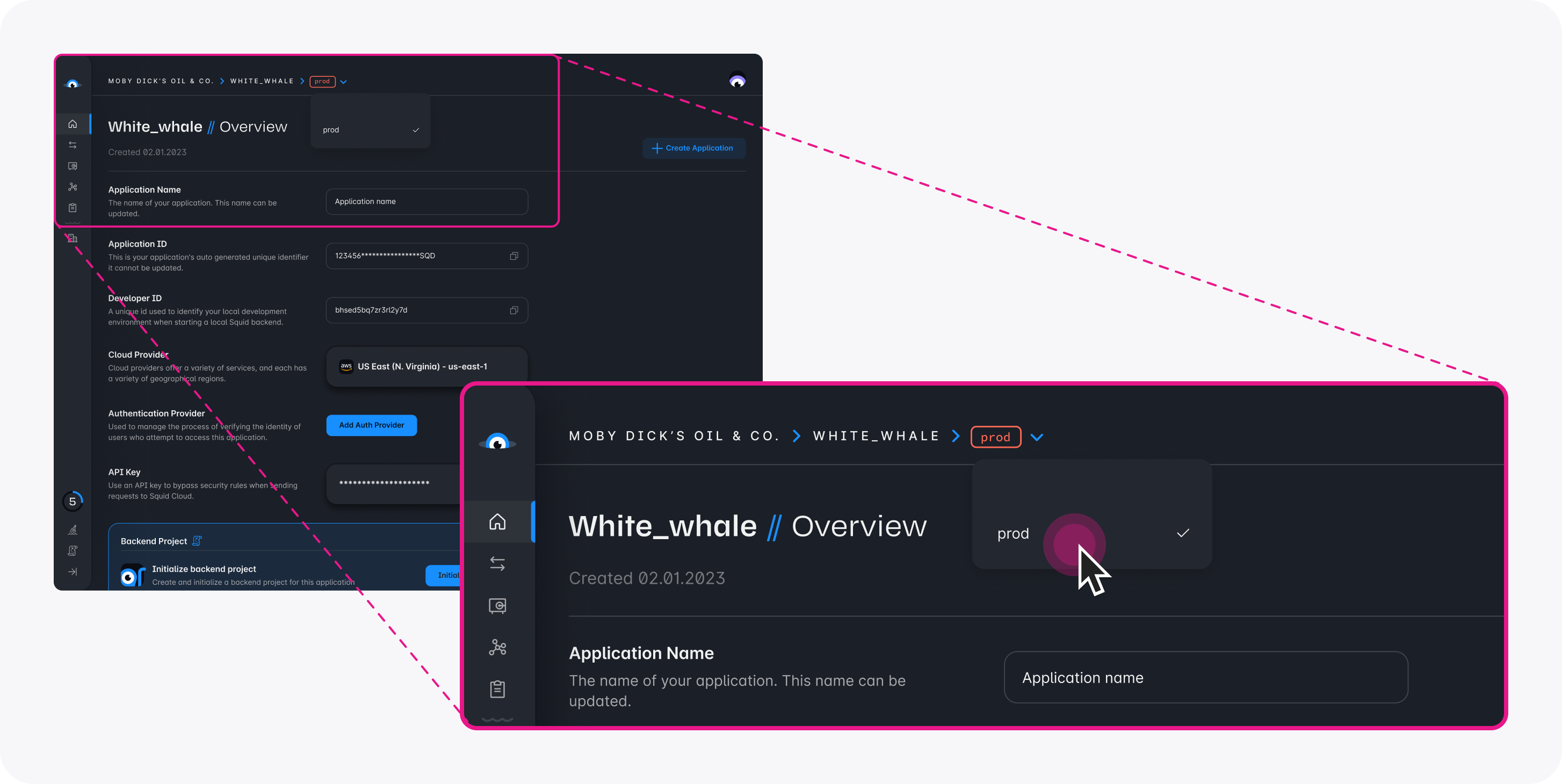
- In the Squid Console, switch to the
devenvironment.
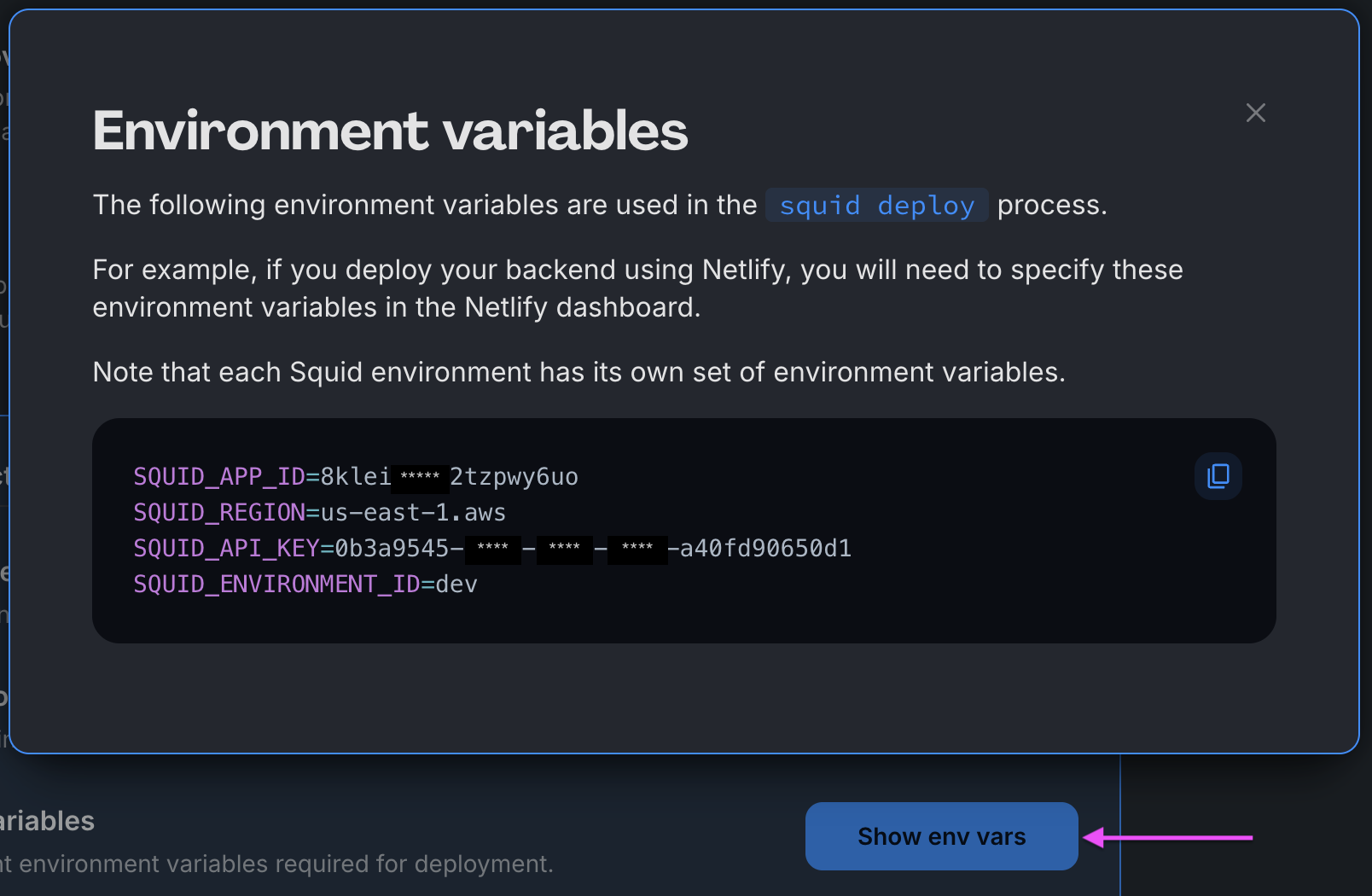
Download the squid-ai-vacation code sample using the following command. Replace the placeholders with the values from your Squid application as shown in the console.
npx @squidcloud/cli init-sample squid-ai-vacation --template squid-ai-vacation --appId YOUR_SQUID_APP_ID --apiKey YOUR_SQUID_API_KEY --environmentId dev --squidDeveloperId YOUR_SQUID_DEVELOPER_ID --region YOUR_REGION
You can find your environment variables under: 'Application' -> 'Show env vars' as seen below:
- Open the project in the IDE of your choice.
- Start the app locally by running the following command in the project folder:
npm run start
- To view the app, navigate to localhost:PORT, where PORT is logged in the terminal. The address will likely be
http://localhost:5173.
WeatherAPI.com Account を作成する
weather forecast を取得するため、この application は WeatherAPI.com で提供される API を使用します。API は free trial を提供しているため、この sample では無料で使用できます。
-
WeatherAPI.com の free trial に sign up します。
-
WeatherAPI.com dashboard で、WeatherAPI.com API key を確認できます。後の step で API connector を使用する際に必要になるため、この API key を控えてください。
WeatherAPI.com を接続する
API を Squid に接続するには、通常 Squid Console で HTTP API connector を追加しますが、この tutorial では必要ありません。詳細については、HTTP API connector に関する documentationを参照してください。
-
この application では、cURL command を使用して Weather API connector を生成できます。terminal window で以下の command を実行します。
YOUR_SQUID_APP_IDとYOUR_SQUID_API_KEYの placeholder を Squid app の value に変更します。正しい value は Squid Console の application overview page にある Backend Project section、または.envfile で確認できます。この command を実行すると、Squid application に weather という name の新しい API connector が追加されます。
curl -X PUT https://console.us-east-1.aws.squid.cloud/openapi/iac/applications/YOUR_SQUID_APP_ID-dev/integrations/weather -H "x-app-api-key: YOUR_SQUID_API_KEY" -H "Content-Type: application/json" -d '{
  "id": "weather",
  "configuration": {
    "discoveryOptions": {}
  },
  "type": "api"
}'
-
以下の cURL command を実行して API schema を populate します。
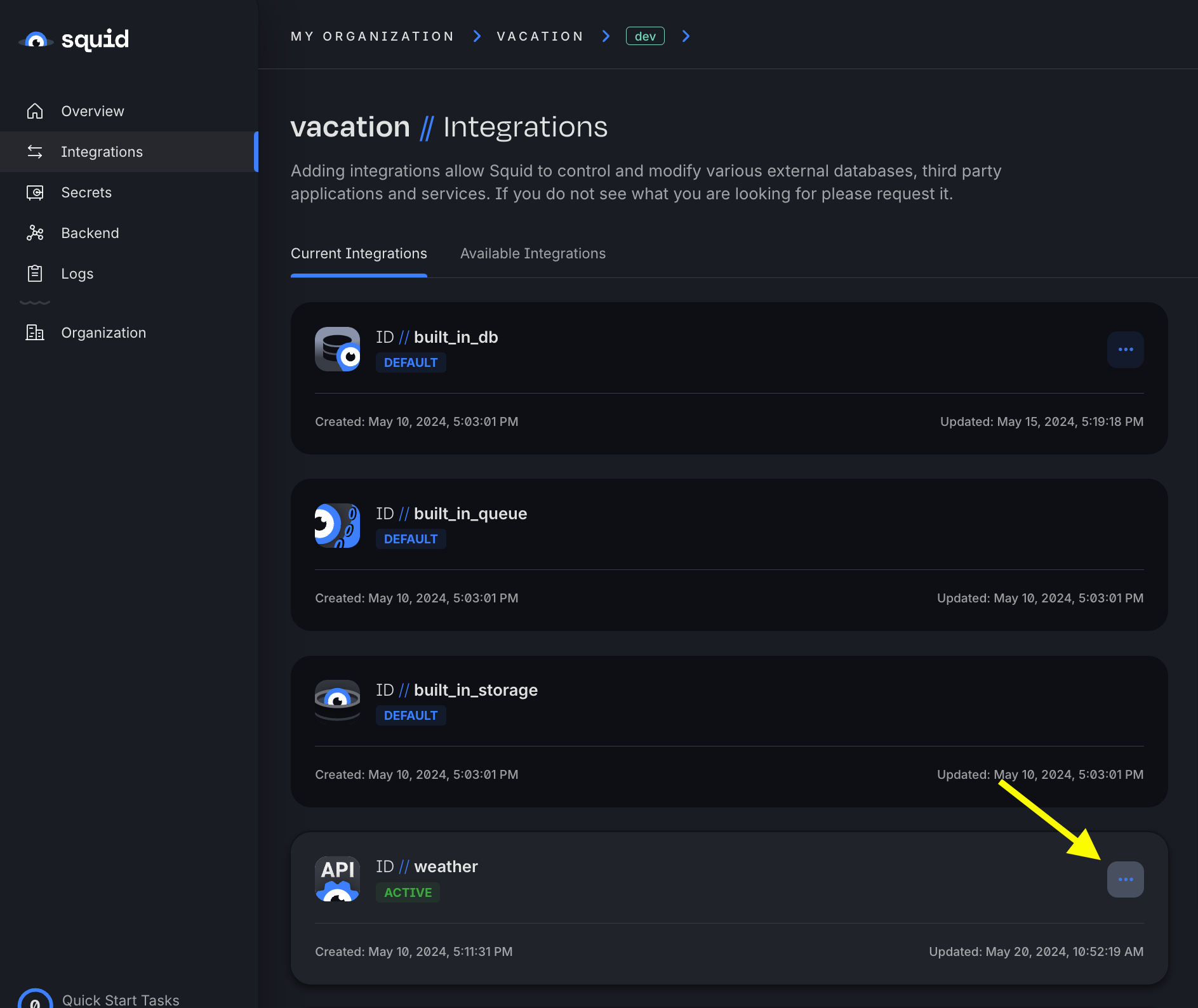
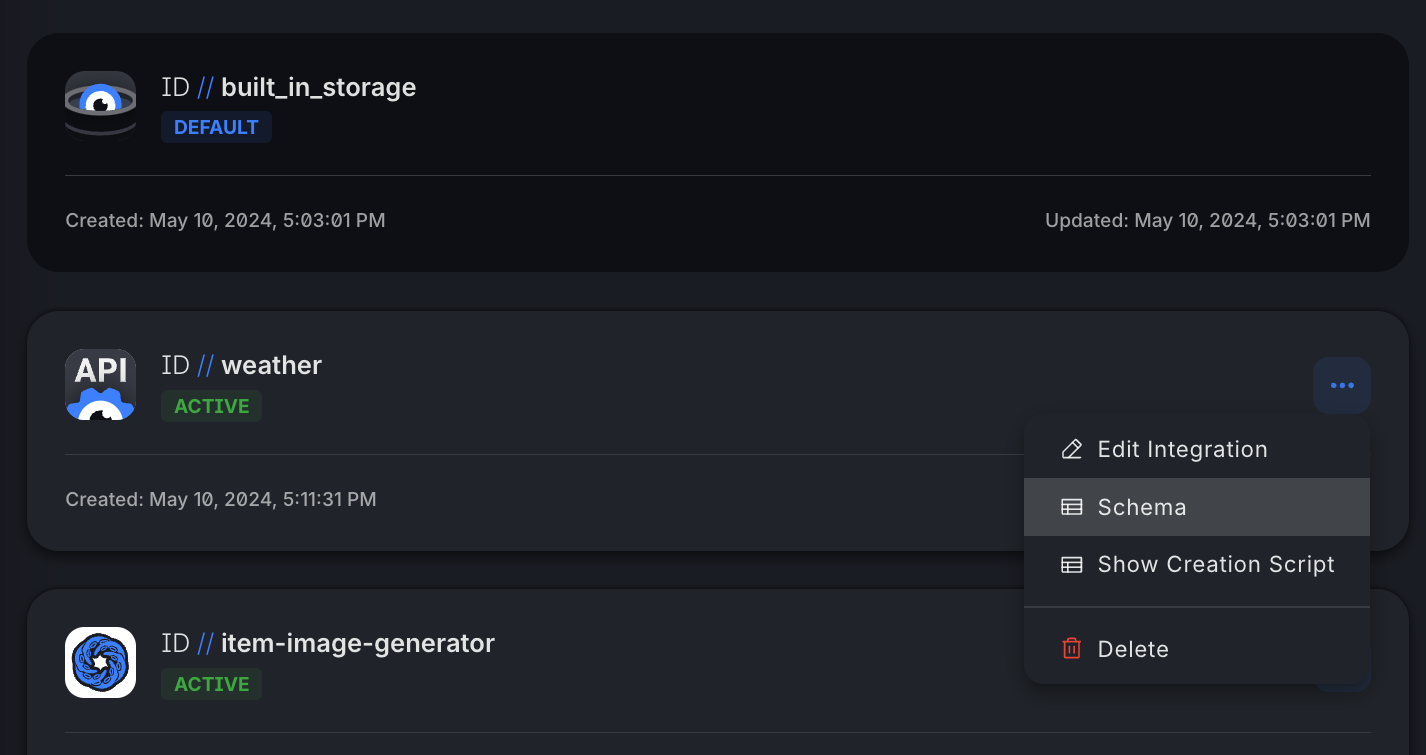
YOUR_SQUID_APP_IDとYOUR_SQUID_API_KEYの placeholder を Squid app の value に変更します。API schema を discover することで、API connector を streamlined に使用できます。この command の実行後、Squid Console で weather connector に移動し、
...button をクリックして Schema を選択すると schema を explore できます。
curl -X PUT https://console.us-east-1.aws.squid.cloud/openapi/iac/applications/YOUR_SQUID_APP_ID-dev/integrations/weather/schema -H "x-app-api-key: YOUR_SQUID_API_KEY" -H "Content-Type: application/json" -d '{
  "type": "api",
  "baseUrl": "https://api.weatherapi.com/v1",
  "endpoints": {
    "realtime-weather": {
      "relativePath": "/current.json",
      "method": "get",
      "requestSchema": {
        "q": {
          "location": "query",
          "description": null
        },
        "lang": {
          "location": "query",
          "description": null
        }
      },
      "responseSchema": {},
      "injectionSchema": null,
      "tags": null
    },
    "forecast-weather": {
      "relativePath": "/forecast.json",
      "method": "get",
      "requestSchema": {
        "q": {
          "location": "query",
          "description": null
        },
        "days": {
          "location": "query",
          "description": null
        },
        "dt": {
          "location": "query",
          "description": null
        },
        "unixdt": {
          "location": "query",
          "description": null
        },
        "hour": {
          "location": "query",
          "description": null
        },
        "lang": {
          "location": "query",
          "description": null
        },
        "alerts": {
          "location": "query",
          "description": null
        },
        "aqi": {
          "location": "query",
          "description": null
        },
        "tp": {
          "location": "query",
          "description": null
        }
      },
      "responseSchema": {},
      "injectionSchema": null,
      "tags": null
    },
    "future-weather": {
      "relativePath": "/future.json",
      "method": "get",
      "requestSchema": {
        "q": {
          "location": "query",
          "description": null
        },
        "dt": {
          "location": "query",
          "description": null
        },
        "lang": {
          "location": "query",
          "description": null
        }
      },
      "responseSchema": {
        "location": {
          "location": "body",
          "path": "location",
          "description": null
        },
        "forecast": {
          "location": "body",
          "path": "forecast",
          "description": null
        }
      },
      "injectionSchema": null,
      "tags": null
    },
    "history-weather": {
      "relativePath": "/history.json",
      "method": "get",
      "requestSchema": {
        "q": {
          "location": "query",
          "description": null
        },
        "dt": {
          "location": "query",
          "description": null
        },
        "unixdt": {
          "location": "query",
          "description": null
        },
        "end_dt": {
          "location": "query",
          "description": null
        },
        "unixend_dt": {
          "location": "query",
          "description": null
        },
        "hour": {
          "location": "query",
          "description": null
        },
        "lang": {
          "location": "query",
          "description": null
        }
      },
      "responseSchema": {},
      "injectionSchema": null,
      "tags": null
    },
    "marine-weather": {
      "relativePath": "/marine.json",
      "method": "get",
      "requestSchema": {
        "q": {
          "location": "query",
          "description": null
        },
        "days": {
          "location": "query",
          "description": null
        },
        "dt": {
          "location": "query",
          "description": null
        },
        "unixdt": {
          "location": "query",
          "description": null
        },
        "hour": {
          "location": "query",
          "description": null
        },
        "lang": {
          "location": "query",
          "description": null
        }
      },
      "responseSchema": {},
      "injectionSchema": null,
      "tags": null
    },
    "search-autocomplete-weather": {
      "relativePath": "/search.json",
      "method": "get",
      "requestSchema": {
        "q": {
          "location": "query",
          "description": null
        }
      },
      "responseSchema": {},
      "injectionSchema": null,
      "tags": null
    },
    "ip-lookup": {
      "relativePath": "/ip.json",
      "method": "get",
      "requestSchema": {
        "q": {
          "location": "query",
          "description": null
        }
      },
      "responseSchema": {},
      "injectionSchema": null,
      "tags": null
    },
    "time-zone": {
      "relativePath": "/timezone.json",
      "method": "get",
      "requestSchema": {
        "q": {
          "location": "query",
          "description": null
        }
      },
      "responseSchema": {},
      "injectionSchema": null,
      "tags": null
    },
    "astronomy": {
      "relativePath": "/astronomy.json",
      "method": "get",
      "requestSchema": {
        "q": {
          "location": "query",
          "description": null
        },
        "dt": {
          "location": "query",
          "description": null
        }
      },
      "responseSchema": {},
      "injectionSchema": {},
      "tags": null
    }
  },
  "injectionSchema": null
}'
Weather API Schema を表示・更新する
WeatherAPI.com request には API key が必要です。Squid では Squid Secrets を使用して API key を安全に保存できます。injection feature を使用すると、すべての request に key を自動的に含めることもできます。API key を inject することで API key を安全に保ち、Squid application からのすべての WeatherAPI request を自動的に authenticate できます。
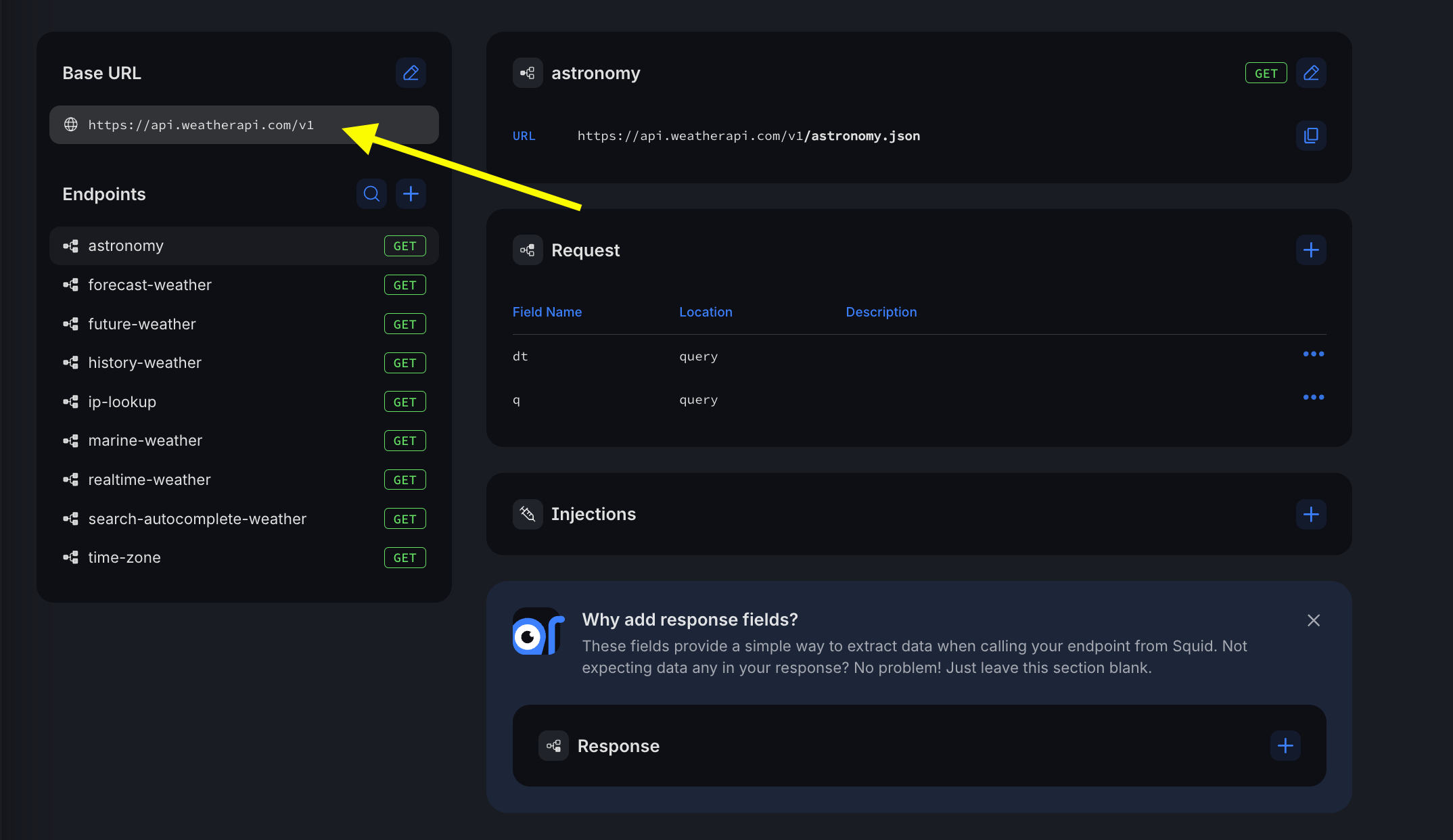
- Squid Console で、weather connector schema に移動します。
https://api.weatherapi.com/v1である base URL をクリックします。
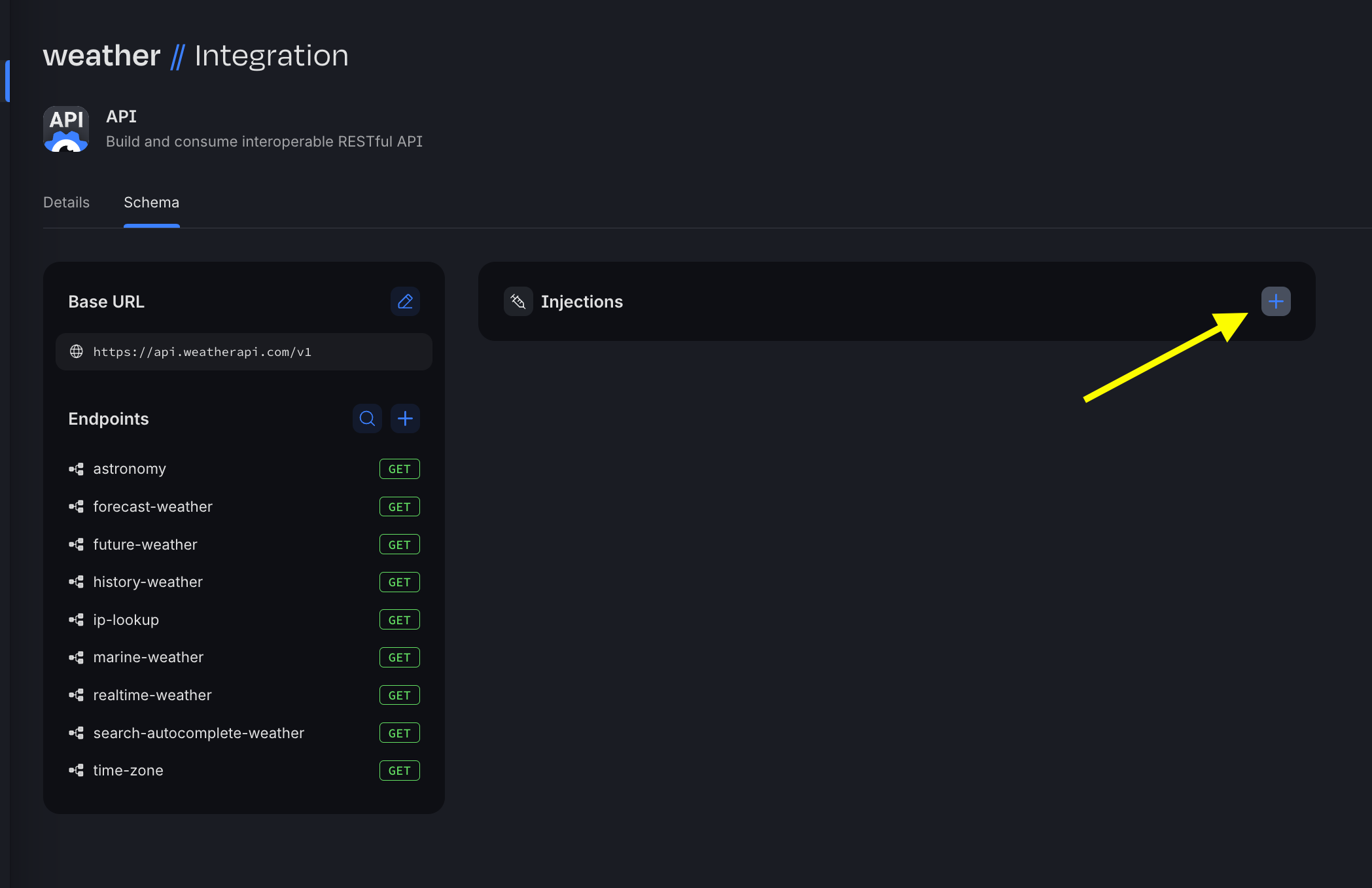
- Injections area の + をクリックして、新しい injection を追加します。
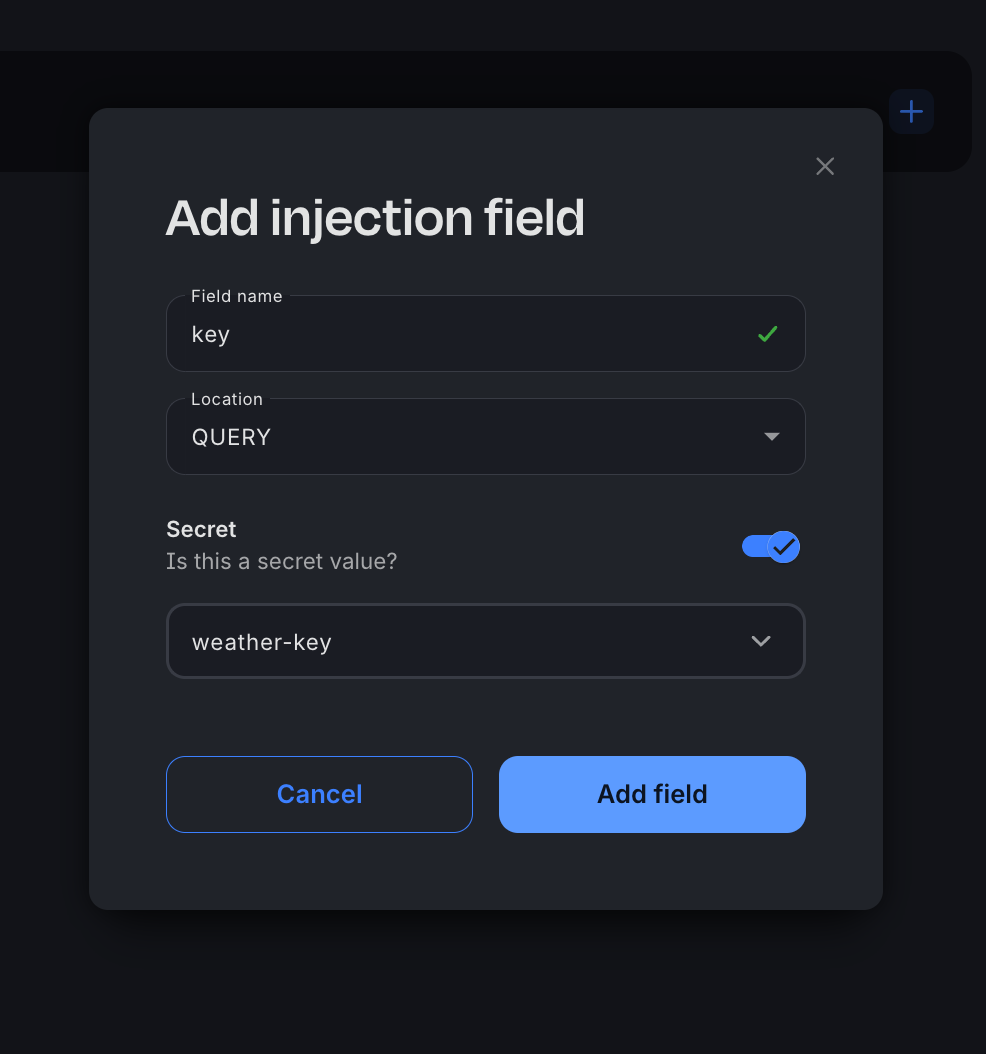
- Field name は key、Location は query です。Secret を on に toggle して、新しい secret を作成します。secret value には WeatherAPI.com API key を paste します。secret が保存・選択されていることを確認します。続いて右上の Save Schema button をクリックし、schema を保存します。
Real-time Product Search API に接続する
AI agent が提案した item を所有していない場合、app は必要なものを簡単に purchase できるよう Google Shopping への link を提供します。これは RapidAPI で利用可能な product search API を使用して実現されます。
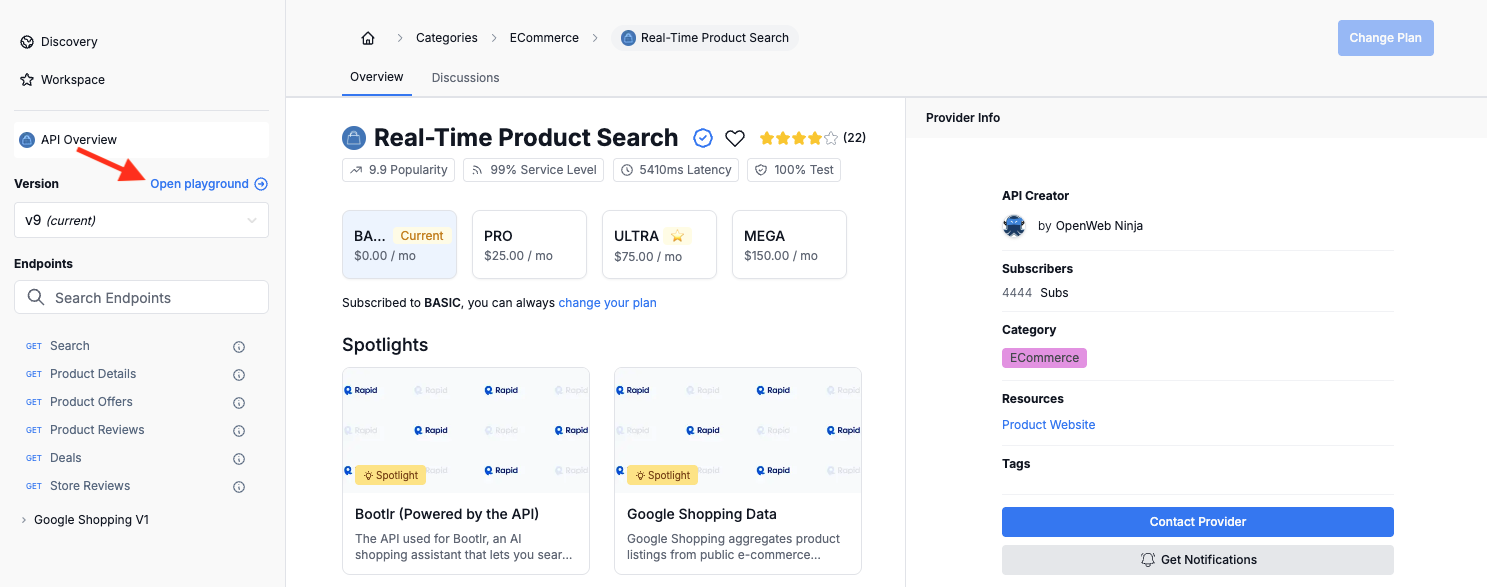
- Real-time Product Search API に移動し、subscribe します。WeatherAPI.com API と同様に API key が必要です。sign up 後、Open playground をクリックして API key を確認します。
- 以下の command を使用して Squid connector を生成します。
YOUR_SQUID_APP_IDとYOUR_SQUID_API_KEYの placeholder を Squid app の value に変更します。
curl -X PUT https://console.us-east-1.aws.squid.cloud/openapi/iac/applications/YOUR_SQUID_APP_ID-dev/integrations/product-search -H "x-app-api-key: YOUR_SQUID_API_KEY" -H "Content-Type: application/json" -d '{
  "id": "product-search",
  "configuration": {
    "discoveryOptions": {}
  },
  "type": "api"
}'
- 以下の cURL command を実行して API schema を connector に追加します。
YOUR_SQUID_APP_IDとYOUR_SQUID_API_KEYの placeholder を Squid app の value に変更します。
curl -X PUT https://console.us-east-1.aws.squid.cloud/openapi/iac/applications/YOUR_SQUID_APP_ID-dev/integrations/product-search/schema -H "x-app-api-key: YOUR_SQUID_API_KEY" -H "Content-Type: application/json" -d '{
  "type": "api",
  "baseUrl": "https://real-time-product-search.p.rapidapi.com",
  "endpoints": {
    "search": {
      "relativePath": "search",
      "method": "get",
      "requestSchema": {
        "q": {
          "location": "query",
          "description": null
        },
        "country": {
          "location": "query",
          "description": null
        },
        "language": {
          "location": "query",
          "description": null
        },
        "limit": {
          "location": "query",
          "description": null
        },
        "sort_by": {
          "location": "query",
          "description": null
        }
      },
      "responseSchema": {
        "data": {
          "location": "body",
          "path": "data",
          "description": null
        }
      },
      "injectionSchema": {
        "X-RapidAPI-Host": {
          "value": "real-time-product-search.p.rapidapi.com",
          "type": "regular",
          "location": "header"
        }
      },
      "tags": null
    }
  },
  "injectionSchema": null
}'
-
Squid Console で Connectors tab をクリックし、weather connector の場合と同様に product-search connector schema に移動します。
-
search endpoint をクリックします。
-
Injections area の + をクリックして、新しい injection を追加します。
-
Field name は X-RapidAPI-Key、Location は header です。Secret を on に toggle し、新しい secret を作成します。secret value には RapidAPI API key を paste します。secret が保存・選択されていることを確認してから、新しい injection を保存します。
AI Agent を追加する
-
Squid Console で Agent Studio tab に移動します。
-
Create New Agent をクリックして agent を追加します。次の detail を指定します。
- Agent ID:
planner - Description:
This is an agent for Squid AI's vacation planner tutorial
-
Create をクリックして agent を作成します。
-
Instructions field に、agent 用として次の instruction を追加します。
You are designed to create a list of items to pack for a trip based on the provided weather forecast and date, where the date is a string. You should create 3-5 items.
これらの instruction は AI agent に実行する action を伝えます。
Squid Application を Explore する
frontend と backend の両方を実行した状態で、web browser から http://localhost:5173/ にアクセスします。これで count button を experiment し、Squid application の functionality を explore する準備ができました。
-
vacation destination 候補の zip code を入力します。例: 90210。
-
次の 14~90 日以内で vacation の start date と end date を入力します。demonstration のため、この application では vacation を 5 日間に制限しています。これにより app が実行する API call 数を制限できます。
-
Submit をクリックすると、提案された packing item が表示されます!
次のステップ
- Squid AI agent の詳細については、documentationを参照してください。
- Squid の real-time data capability の詳細については、Client SDK documentationを参照してください。
- 独自 data source との integration 方法については、database connector documentationを参照してください。