RAG Agent を実装する
document を AI agent の knowledge base に統合し、data に対して action を実行します
構築するもの
- appliance に関する question に answer するために product manual を context として使用し、request に応じて maintenance task の list を作成する AI agent を持つ app。
この tutorial では以下の feature を使用します。
| AI Ability | Internal Connector | Backend Function |
|---|---|---|
| Knowledge base | Built-in Database | Webhook |
この tutorial で collaboration していただいた Otairo の partner に心より感謝します!
Environment Setup
- In the Squid Console, switch to the
devenvironment.
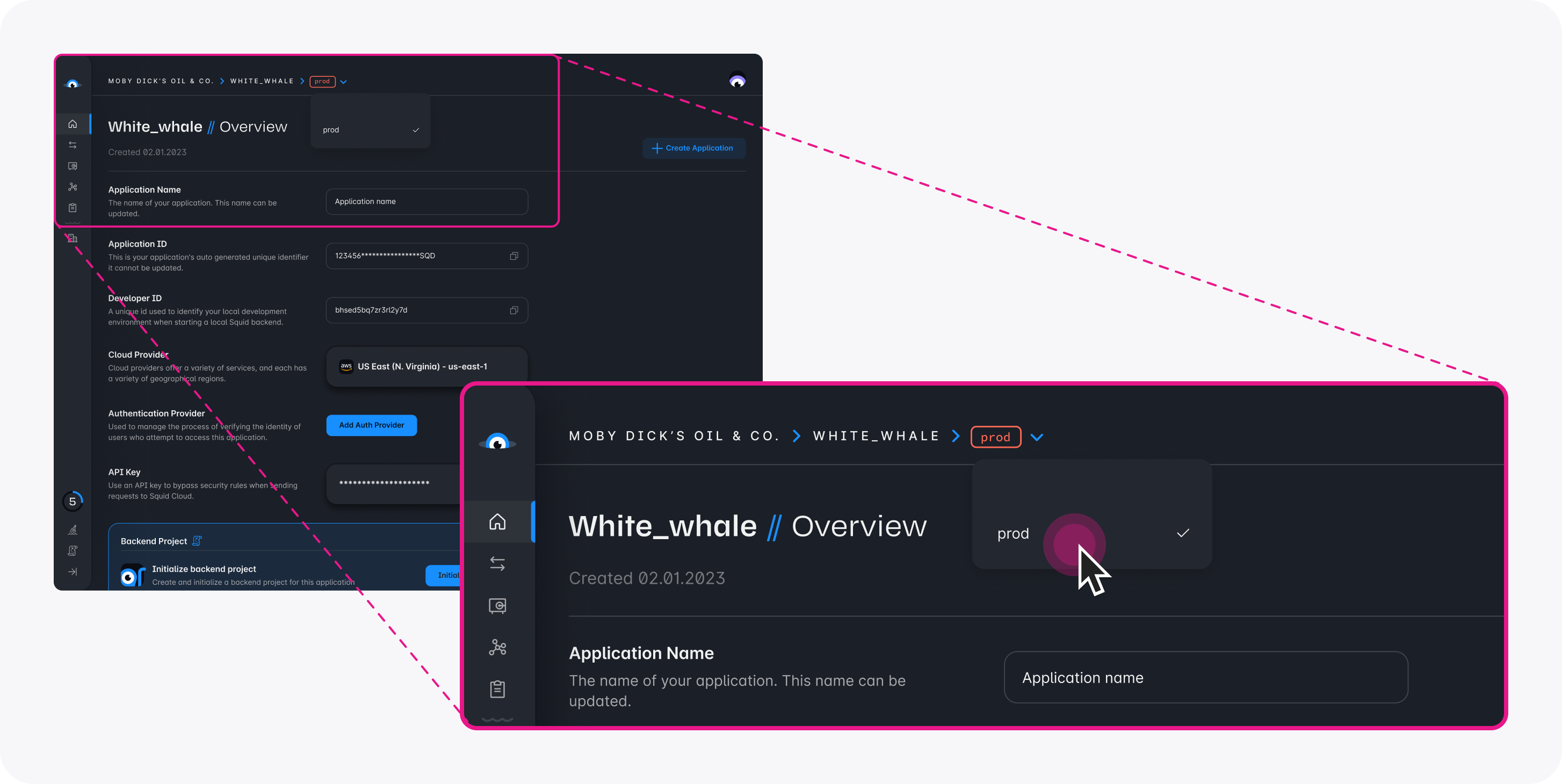
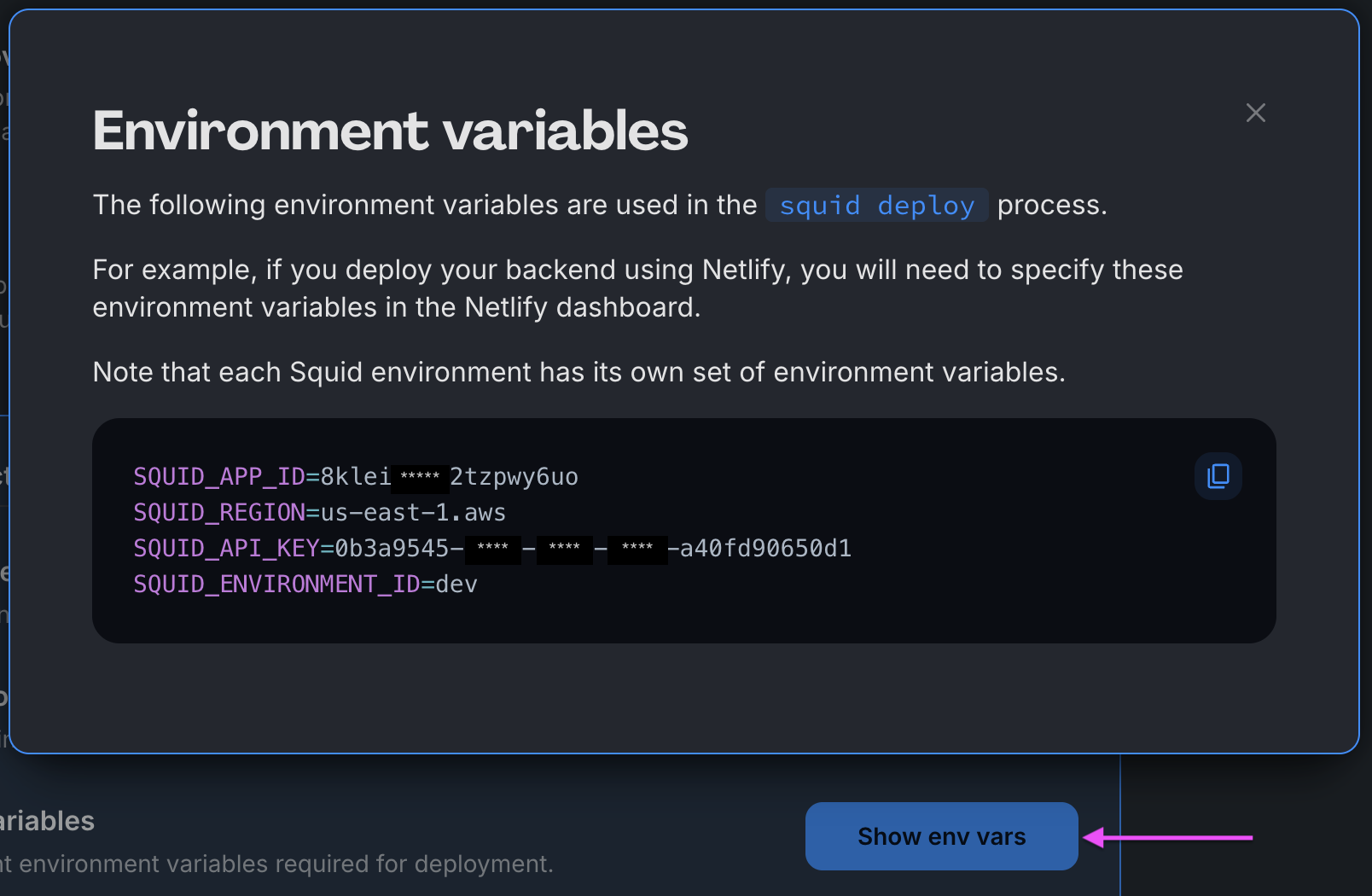
Download the ai-home-maintenance code sample using the following command. Replace the placeholders with the values from your Squid application as shown in the console.
npx @squidcloud/cli init-sample ai-home-maintenance --template ai-home-maintenance --appId YOUR_SQUID_APP_ID --apiKey YOUR_SQUID_API_KEY --environmentId dev --squidDeveloperId YOUR_SQUID_DEVELOPER_ID --region YOUR_REGION
You can find your environment variables under: 'Application' -> 'Show env vars' as seen below:
- Open the project in the IDE of your choice.
- Start the app locally by running the following command in the project folder:
npm run start
- To view the app, navigate to localhost:PORT, where PORT is logged in the terminal. The address will likely be
http://localhost:5173.
application は正常に start するはずですが、次の step を完了するまで完全には機能しません。
AI Agent を追加する
各 agent は、独自の instruction と ability set によって区別される異なる persona または use case を表します。
-
Squid Console で Agent Studio tab に移動します。
-
Create New Agent をクリックして agent を追加し、以下の detail を指定します。
- Agent ID:
maintenance-scheduler - Description:
This is an agent for Squid AI's home maintenance tutorial
-
Create をクリックして agent を作成します。
-
Instructions field で、agent に以下の instruction を追加します。
Respond to queries about home maintenance documents. Only use the provided context to generate responses. Never respond based on your general knowledge. When applicable, list the source document used. If a question cannot be answered using the provided context, state that clearly and do not attempt to answer using general knowledge.
これらの instruction は AI agent に実行する action を伝えます。
- 次に Agent Settings tab に移動します。Set Agent to Public まで scroll down し、この setting を on に toggle します。 これにより、security rule を記述せずに agent を public に access 可能にできます。
production に deploy する前に、適切な security rule が設定されていることを確認し、Public access を有効にした状態で agent を実行しないようにしてください。agent の保護方法については、この referenceを確認してください。
Background Knowledge を追加する
knowledge base ability は、question への回答時に agent に context を提供します。context を追加すると、underlying AI model の一部ではない可能性のある specific topic に関して agent が relevant answer を提供できるようになります。
- 以下の appliance manual を PDF file として download します。
Oven:
https://media3.bosch-home.com/Documents/8001203758_A.pdf
Microwave:
https://media3.bosch-home.com/Documents/9001152447_B.pdf
Dishwasher:
https://media3.bosch-home.com/Documents/9001641455_A.pdf
Washer/dryer:
https://products-salsify.geappliances.com/image/upload/s--pdIsKW0u--/izid0w85hg3mbckeyyo1.pdf
または、独自の appliance 用 manual を online で検索して context として提供することもできます。これにより、それらに関する question を尋ねられます。
-
Add Abilities をクリックし、Knowledge Base の File ability を選択します。
-
4 つの file をそれぞれ upload します。各 file の upload 中はしばらく待機してください。agent は document から content を自動的に extract し、text を knowledge base に追加します。
Squid Application を探索する
project の root directory で以下の command を実行し、両方の server を実行します。
npm run start
両方の server を実行した状態で、web browser から http://localhost:5173/ にアクセスします。これで Squid application の functionality を探索する準備ができました。
- appliance について question を尋ねてみます。たとえば以下のように尋ねられます。
How do I clean my cooktop?
AI agent は manual から取得した detail を chat 内で response します。
- AI agent に appliance の maintenance task list を作成するよう instruction します。
Create a list of maintenance tasks.
しばらくすると、新しい task が application の右側に list として表示されます。これは AI agent が manual を context として使用して maintenance task を作成し、代わりに task を database に write できたことを意味します。
-
いくつかの task を完了した後、Squid の Query with AI feature を使用してさらに question を尋ねられます。この feature は database schema の knowledge を使用して、prompt に基づく query を生成します。
app の auto-discovered schema を保存するには、Squid Console に移動し、 Connectors tab に移動して built_in_db の
...button をクリックし、dropdown menu を開きます。 dropdown から Schema を選択します。 -
Save Schema をクリックして app の auto-discovered schema を保存します。
-
一部の task を check off して completed として mark してから、AI agent に以下を尋ねます。
Which maintenance tasks have I completed?
AI agent は database に query し、completed item を discover できます。これは AI agent が on-the-fly で database query を生成できることを意味します!
- AI agent はより complex な instruction を認識して response できます。たとえば、AI agent に以下の prompt を指定します。
Look up in the manual to determine how often I should clean my washer-dryer lint filter. Based on that interval, if I run two loads of laundry a day, how often should I clean the filter?
AI agent は lint filter の cleaning frequency を判定し、それを question に適用して logical response を提供できます。
Code を確認する
Squid により AI agent を搭載した full-stack app を正常に構築しました!under the hood で何が起きているか気になりますか?この section では code を確認します。
Frontend で AI Agent を構成する
Squid React SDK の useAiChat hook を使用すると、次の code で AI agent に接続できます。
const { history, chat, complete } = useAiChat('maintenance-scheduler');
AI Agent に Functionality を追加する
Squid AI Agent は prompt に基づいて異なる action を実行できます。これは、Squid backend で function に @aiFunction decorator を指定し、options parameter の一部として prompt とともに function を渡すことで実現されます。
たとえば、以下の AI function は appliance manual から maintenance task list を作成し、logMaintenanceScheduleInternal() function を使用して task を built-in database に write します。
  @aiFunction(
  'If someone asks for a list of maintenance tasks, run this function. This function creates a maintenance task for a list of tasks. Pass each created task to this function. If the user asks how to complete a specific task, then do not run this function. !Important: if a user asks questions about **existing** tasks in the database, then do not run this function.',
  [
    {
      name: 'task',
      description: 'the task to complete',
      type: 'string',
      required: true,
    },
    {
      name: 'interval',
      description: 'the frequency or interval at which the task needs to be done',
      type: 'string',
      required: true,
    },
    {
      name: 'appliance',
      description:
        'the appliance that requires the given maintenance. Provide the manufacturer name of the appliance, along with the type of appliance',
      type: 'string',
      required: true,
    },
  ],
)
async
createTaskItem(params
:
{
  task: string;
  interval: string;
  appliance: string
}
)
{
  const { task, interval, appliance } = params;
  await this.logMaintenanceScheduleInternal({ task, interval, appliance, completed: false });
}
@aiFunction decorator には function の目的を description する parameter が含まれていることに注目してください。AI agent はこの information を使用して、function を call するタイミングを決定します。
2 つ目の AI function は prompt に基づいて information を database に query します。
  @aiFunction(
  " !Important: Call this function when a client prompt requests information about the **existing** tasks in their database. This function queries the database for tasks that meet the client's request. Include the exected query in your response",
  [
    {
      name: 'prompt',
      description: 'the request from the client',
      type: 'string',
      required: true,
    },
  ],
)
async
checkTasksAI(params
:
{
  prompt: string
}
):
Promise < string > {
  const { prompt } = params;
  const response = await this.squid.ai().executeAiQuery('built_in_db', prompt);
  return `${response.answer} \n ${response.executedQuery}`;
}
frontend では、以下の code を使用して各 prompt とともに function を渡します。
chat(question, { functions: ['checkTasksAI', 'createTaskItem'] }); // Add functions in the second parameter
AI agent は prompt に応じて function を実行するタイミングを決定します。
AI function の詳細については、AI functions documentationを参照してください。
次のステップ
おめでとうございます!document を read して question に answer し、document content に基づいて database に write し、client prompt に基づいて database から read できる AI agent を application に追加しました。
- Squid AI agent の詳細については、documentationを参照してください。
- Squid の real-time data capability の詳細については、Client SDK documentationを参照してください。
- 独自 data source に接続する方法については、Database connectors documentationを参照してください。