Stripe と Squid Webhook
Squid の @webhook decorator を使用して Stripe の event に response します
Webhook は event 発生時に app または service から送信される HTTP request です。request の payload には event に関する有用な information が含まれ、自身の code で action を実行するために利用できます。通常は product の dashboard を通じて service に HTTP endpoint を提供します。各 product には webhook を設定できる独自の event がありますが、一般的な scenario は以下のとおりです。
- 新しい user の作成
- user profile の update
- database または storage の modify
- analytics event
この tutorial では、Stripe customer の invoice status が 'paid' に change したときに実行される webhook を作成します。
構築するもの
- Stripe webhook に response して built-in database に data を追加する Squid backend。
学ぶこと
- Stripe event に hook する Squid Service の作成方法。
- database に security を追加する Squid Service の作成方法。
必要なもの
- Squid CLI
- Squid account
- Stripe account
- Stripe CLI
- Optional: React 用に構成した single-page application を持つ Auth0 account
Environment Setup
- 次の command を使用して Squid CLI を install します。
npm install -g @squidcloud/cli
- notes-app code sample を download します。
squid init-sample stripe-webhooks --template stripe-webhooks
- 任意の IDE で project を開きます。
starter project には frontend と backend の 2 つの folder があることに注目してください。記述する code は backend のみであるため、現時点で frontend を変更する必要はありません。tutorial の最後には、document update を real-time で表示できるよう frontend を構成する option があります。
Squid Backend をセットアップする
There are two subfolders that make up the stripe-webhooks project: frontend and backend. The backend folder contains the Squid backend for the app.
Navigate to the Squid Console and create a new application named
stripe-webhooks.
- In the Squid Console, navigate to the application overview page and scroll to the Backend project section. Click Create .env file and copy the command.
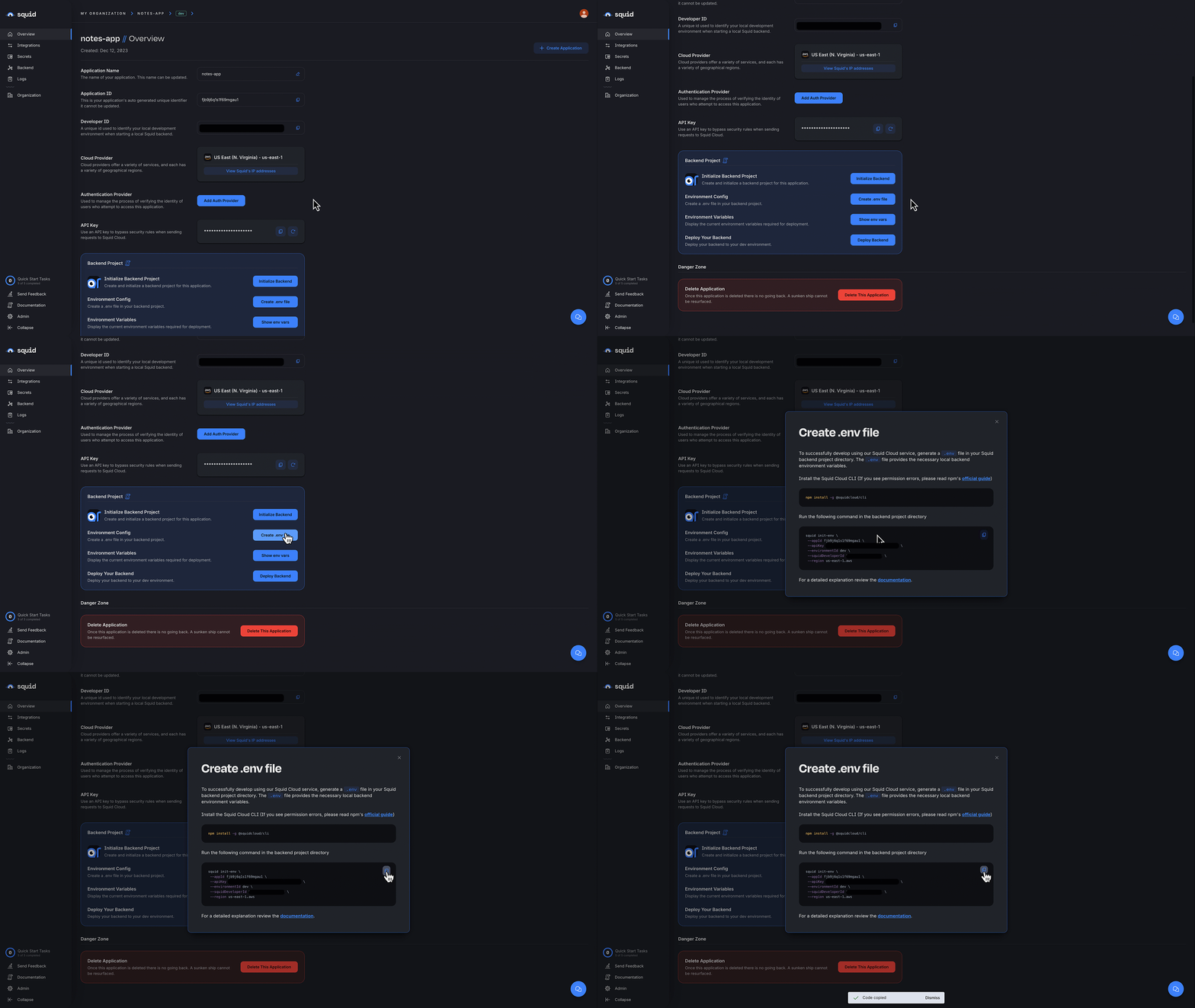
- In the terminal, change to the backend directory:
cd backend
- Create the
.envfile using the command you copied from the console. The command has the following format:
squid init-env --appId YOUR_APP_ID --apiKey YOUR_API_KEY --environmentId dev --squidDeveloperId YOUR_SQUID_DEVELOPER_KEY --region us-east-1.aws
- Install the required dependencies:
npm install
The backend is now set up and ready to use with a frontend!
Webhook Service を作成する
この section で作成する webhook Squid Service は、status を含む新規 invoice を追加するか、既存 invoice を 'paid' status に update するよう設計されています。各 field の key は Stripe の invoice ID であり、value は 'paid' または 'unpaid' です。
document ID は user の authentication ID です。user が自身の invoice しか閲覧できないよう security rule が構成されています。visualize しやすいように、structure は以下のようになります。
userPayments:
  squidUserId123: {
    kaglautA235980A: 'paid'
    Edg26GH697dk104: 'unpaid'
    ...
  squidUserId456: {
    SFHGhg995gja0435: 'unpaid'
    ...
backend/src/service/に移動し、stripe-webhook-service.tsfile を開きます。StripeWebhookServiceclass に次の function を追加します。
async addInvoiceToDatabase(stripeUserId: string, invoiceId: string, paid: boolean): Promise<string | any> {
    const paidStatus = paid ? 'paid' : 'unpaid';

    try {
      // Find user in database
      const userDocs = await this.squid
        .collection('userPayments')
        .query()
        .eq('stripeUserId', stripeUserId)
        .snapshot();

      if (userDocs.length === 0) {
        console.log('new user found, adding to database');
        const newInvoices = { [invoiceId]: paidStatus };
        await this.squid
          .collection('userPayments')
          .doc('squidUserId123')
          .insert({ stripeUserId: stripeUserId, invoices: newInvoices });
        return 'new user, database update complete';
      }

      const newInvoices = { ...userDocs[0].data.invoices, [invoiceId]: paidStatus };
      await userDocs[0].update({ invoices: newInvoices });
      return 'database update complete';
    } catch (error) {
      console.error(error);
      return error.message;
    }
}
この helper function は、Stripe customer ID、Stripe invoice ID、invoice の 'paid' status の 3 つの parameter を受け取ります。userPayments という collection に query を実行して、指定された Stripe customer ID の user に属する document を見つけ、新しい invoice を含めるように invoice を update します。
document が見つからない場合は、squidUserId123 を key とする新しい document を追加します。これは demonstration 用です。すべての Stripe customer には関連する Squid user ID があり、user ID を key とする document が存在する必要があります。独自の app では、この scenario を database 内の別の location に log する error として処理することが多いでしょう。
addInvoiceToDatabasefunction の後に、以下の code を追加します。
@webhook('handleStripePayment')
  async handleStripePayment(request: WebhookRequest): Promise<WebhookResponse | any> {
    const stripeUserId = request.body.data.object.customer;
    const invoiceId = request.body.data.object.id;
    const response = await this.addInvoiceToDatabase(stripeUserId, invoiceId, true);
    return this.createWebhookResponse(response);
  }
この function は @webhook decorator を使用し、Squid webhook として mark します。string handleStripePayment は endpoint URL で使用されるため、endpoint の目的を明確にする value を選択してください。
customer と id property は Stripe から送信される request body で利用できます。利用可能な property の詳細は、webhook に関する Stripe documentationを参照してください。
これらの attribute は addInvoiceToDatabase function に渡されます。次に、Squid の createWebhookResponse function を使用して Stripe に response が送信されます。
backendfolder で、以下の command を使用して Squid backend をローカルで実行します。
squid start
terminal log には webhook 用 URL が含まれます。log は以下のようになります。
| Available webhooks:
| Webhook URL for handleStripePayment: https://YOUR_APP_ID-dev-YOUR_SQUID_DEVELOPER_ID.us-east-1.aws.squid.cloud/webhooks/SQUID_WEBHOOK_NAME
次の section で必要になるため、この URL を控えてください。
Stripe Customer を追加する
この section には Stripe account が必要です。
- test mode で、Stripe dashboard の Customers sectionに移動します。
- Add customer をクリックします。customer に John Doe、または任意の name を付けます。
- Add customer をクリックして新しい customer を保存します。
Stripe に Webhook を追加する
- Stripe dashboard で Developers をクリックします。
- Developers page で Webhooks tab をクリックします。
- Add endpoint をクリックします。
- terminal log の endpoint URL を paste します。Endpoint URL の format は以下のとおりです。
https://YOUR_APP_ID-dev-YOUR_SQUID_DEVELOPER_ID.us-east-1.aws.squid.cloud/webhooks/handleStripePayment
使用している URL format は dev environment 用です。prod environment の endpoint format は https://YOUR_APP_IDYOUR_SQUID_DEVELOPER_ID.APP_REGION.squid.cloud/webhooks/SQUID_WEBHOOK_NAME です。
-
Select events をクリックし、invoice.paid を選択します。search bar を使用すると便利です。
-
Add endpoint をクリックします。
Webhook をテストする
-
新しい terminal window を開きます。これで 2 つの terminal window が開いているはずです。まだ install していない場合は、Stripe CLI を install します。
-
Stripe customer ID を保存する environment variable を追加します。Stripe customer ID は、Stripe Customers dashboard に追加した customer の details section で確認できます。
export customer=YOUR_STRIPE_CUSTOMER_ID
- 次の Stripe command を使用して customer 用の新しい paid invoice を作成します。
stripe trigger invoice.paid --override invoiceitem:customer=$customer --override invoice:customer=$customer --override payment_method:customer=$customer
この tutorial では、これらの flag の意味をあまり気にする必要はありません。Stripe CLI の詳細については、Stripe reference docsを参照してください。
この command は構成した temporary environment variable を使用します。別の terminal window でこの command を実行する場合、customer variable を再度追加する必要があります。
-
Stripe dashboard で、webhooks tab から endpoint を選択します。発生した event、Squid response、request body を確認できます。
-
Stripe dashboard で Customers tab を選択し、customer profile の Invoices section まで scroll down します。paid invoice が追加されていることを確認してください。
customer list にも新しい unnamed customer が表示されます。Stripe CLI を使用した invoice.paid event の test では、新しい user が作成されます。これは live event では発生しません。
完了です!
おめでとうございます!Stripe で trigger された event に response する Squid Service webhook を作成しました。目的は完了しましたが、希望する場合はさらに追加できます。
Bonus Section: Frontend App を追加する
backend の update 済み document data を表示するには、query を追加して document を取得し、result を log 出力できます。しかし、app 内での data の使用方法をより適切に示すには、frontend で update を表示するのが最適です。
以下の bonus step では、Stripe event に response する database の real-time update を表示できる frontend を構成します。
React 用に構成した single-page application を持つ Auth0 account が必要です。
Auth0 Integration を追加する
- Auth0 app をまだ作成していない場合は、Auth0 account を setup し、React 用に構成した single-page application を作成します。
callback URL と logout URL を追加する際は、
http://localhost:5173を使用します。 devenvironment の Squid Console で、Integrations tab を選択します。- Available integrations tab をクリックして、すべての integration を表示します。
- Auth0 integration まで scroll し、Add integration をクリックします。
- Integration ID に auth0 と入力します。
- Auth0 app の client ID と domain を入力します。これらは Auth0 console で確認できます。
- Add integration をクリックします。
Frontend に Squid を追加する
The following steps add configuration parameters to connect the application to Squid.
- Open a new terminal window and navigate to the project's frontend. You should now have two open terminal windows: one for the app's backend and one for the frontend.
cd frontend
- Install the required dependencies:
npm install
- Run the following command to create a
.env.localfile with the Squid environment configuration needed to initialize Squid:
npm run setup-env
frontend/src/main.tsxに移動します。configuration を必要とするAuth0Providercomponent があることに注目してください。
ReactDOM.createRoot(document.getElementById('root') as HTMLElement).render(
  <Auth0Provider
    domain="AUTH0_DOMAIN"
    clientId="AUTH0_CLIENT_ID"
    authorizationParams={{
      redirect_uri: window.location.origin,
      audience: 'auth0-api-id',
    }}
  >
    <SquidContextProvider
      options={{
        appId: import.meta.env.VITE_SQUID_APP_ID,
        region: import.meta.env.VITE_SQUID_REGION,
        environmentId: import.meta.env.VITE_SQUID_ENVIRONMENT_ID,
        squidDeveloperId: import.meta.env.VITE_SQUID_DEVELOPER_ID,
      }}
    >
      <App />
    </SquidContextProvider>
  </Auth0Provider>
);
-
Auth0Providercomponent の placeholder を Auth0 application の domain と client ID に置き換えます。 -
frontend/src/App.tsxfile を開きます。stripeUserIdvariable の placeholder を、作成した customer の Stripe Customer ID に置き換えます。この ID は Stripe dashboard で確認できます。
...
function App() {
  const stripeUserId = '[YOUR_STRIPE_CUSTOMER_ID]'
...
frontendfolder で以下の command を実行します。
npm run dev
-
frontend app を表示するには、terminal に log 出力された PORT の localhost:PORT に移動します。address は通常
http://localhost:5173です。 -
Log in button を使用して login します。
-
Add mock data をクリックして imaginary invoice をいくつか生成します。
-
Stripe command に使用する terminal window で、customer 用に別の paid invoice を作成します。可能であれば、web app も表示できるよう command を別の screen で実行するか、terminal window を縮小します。
stripe trigger invoice.paid --override invoiceitem:customer=$customer --override invoice:customer=$customer --override payment_method:customer=$customer
- web app で新しい paid invoice があることを確認します。素晴らしいです!
おめでとうございます!🦑
よくできました!Stripe の event に response する webhook を作成しただけでなく、change を real-time に確認する frontend も構成しました。
次のステップ
Squid で endpoint を作成したので、次のことを試してみましょう。
- Squid に endpoint をさらに追加し、他の Stripe event に接続する。
- Squid endpoint を webhook を使用する他の product に接続する。
- docsを確認し、Squid Backend SDK で利用可能な他の functionality type を学ぶ。