AI チャットウィジェット
単一の HTML 要素で、フル機能の AI チャット体験をウェブサイトに追加できます。
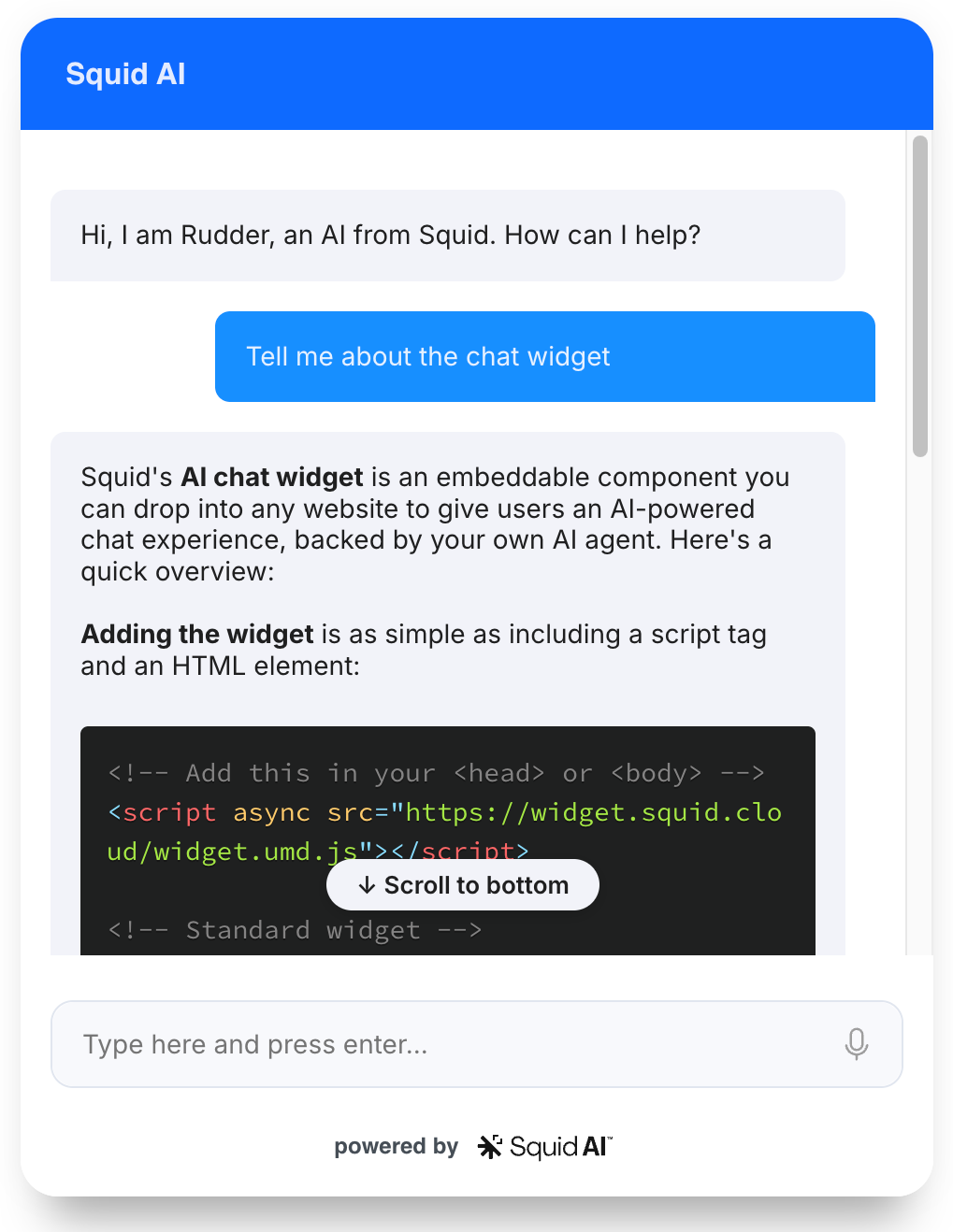
AI チャットウィジェットを使用する理由
サイト上で、ユーザーが AI agent とチャットできるようにしたいとします。agent はビジネスについて理解し、セキュリティモデルに従い、ブランドに合った見た目で、理想的には音声入力、事前定義プロンプト、chain-of-thought の可視化をサポートする必要があります。
これをゼロから構築するには、チャット UI の作成、ストリーミングの接続、履歴の処理、auth の統合、スタイリングが必要です。Squid AI チャットウィジェットは、これらすべてを単一の web component として提供します。
<script async src="https://widget.squid.cloud/widget.umd.js"></script>

<squid-chat-widget-with-fab-button
  squid-app-id="YOUR_APP_ID"
  squid-region="us-east-1.aws"
  squid-environment-id="prod"
  squid-ai-agent-id="YOUR_AGENT_ID"
></squid-chat-widget-with-fab-button>
これで完全な AI チャット体験が実現します。入力ボックス、履歴、ストリーミングレスポンス、および開閉用の floating action button(FAB)が含まれます。
このページの右下にある FAB から、今すぐこのウィジェットを試すことができます。
概要
Squid AI チャットウィジェットは、Squid AI agent(または Query with AI を介して Squid database integration と直接通信します。以下の例を参照してください)と通信する自己完結型の web component です。https://widget.squid.cloud/widget.umd.js でホストされる単一の UMD bundle として提供され、Shadow DOM 内にレンダリングされるため、サイトのスタイルと競合しません。
2 種類の要素バリアント
| 要素 | 動作 |
|---|---|
<squid-chat-widget> | インラインのチャットブロック。ドキュメント内で配置した場所にレンダリングされます。サイズとレイアウトは自由に制御できます。 |
<squid-chat-widget-with-fab-button> | 右下隅の floating action button(FAB)。クリックするとチャットの開閉が切り替わります。 |
どちらの要素も、同じ属性セットを受け取ります。
チャットウィジェットを使用する場面
| ユースケース | 推奨 |
|---|---|
| マーケティングサイトまたは web app に AI assistant を追加する | チャットウィジェット |
| 完全にカスタムなチャット UI を構築する | AI agent SDK を直接使用 |
| 特定の database について質問するチャットを埋め込む | squid-ai-query="true" および squid-ai-integration-id を指定したチャットウィジェット |
| UI なしでプログラムによる AI 呼び出しを実行する | squid.ai().agent() または executeAiQuery |
クイックスタート
前提条件
- Squid Console で作成した Squid application
- application の Agent Studio タブで作成した AI agent
- agent ID、Squid app ID、region(いずれも Squid Console の Backend Project にある Show env vars で確認可能)
ステップ 1: AI agent を作成する
- Squid Console で application を開き、Agent Studio タブをクリックします
- Create New Agent をクリックします
- Agent ID(後から変更できません)と説明を入力します
- Create をクリックします
agent の作成後に、Instructions(agent の応答方法に関するルール)と Knowledge base 項目(背景コンテキスト)を追加します。Test chat ボタンを使用して、すぐに agent をテストできます。
Squid では dev と prod の環境が分かれています。AI agent はこれらの間で共有されません。ウィジェットの squid-environment-id 属性が、agent を作成した環境と一致することを確認してください。environmentsを参照してください。
ステップ 2: ウィジェットスクリプトを読み込む
ウィジェットの script tag を HTML の <head> または <body> に追加します。
<script async src="https://widget.squid.cloud/widget.umd.js"></script>
ステップ 3: ウィジェットをレンダリングする
<squid-chat-widget-with-fab-button
  squid-app-id="YOUR_APP_ID"
  squid-region="us-east-1.aws"
  squid-environment-id="prod"
  squid-ai-agent-id="YOUR_AGENT_ID"
  header-title="Acme Assistant"
  intro-text="Hi! Ask me anything about Acme."
></squid-chat-widget-with-fab-button>
YOUR_APP_ID、us-east-1.aws、および YOUR_AGENT_ID を application の値に置き換えます。
認証と設定
Public agent と private agent
Agent Studio(Agent Settings で Public agent までスクロール)では、agent を public または private に設定できます。
- Public agents には誰でもアクセスできます。ウィジェットに auth credential は必要ありません。
- Private agents では、Squid が呼び出し元を検証できるように auth provider が必要です。
Private agent を保護する
- Squid に auth provider を接続します
squid-auth-provider属性を介して、auth provider のintegrationIdとユーザーの auth token を渡します。
<squid-chat-widget
  squid-app-id="YOUR_APP_ID"
  squid-region="us-east-1.aws"
  squid-environment-id="prod"
  squid-ai-agent-id="YOUR_AGENT_ID"
  squid-auth-provider='{"integrationId": "AUTH_INTEGRATION_ID", "token": "AUTH_TOKEN"}'
></squid-chat-widget>
- チャットを許可するユーザーを制御するため、backend に
@secureAiAgentルールを追加します。
- TypeScript
- Python
@secureAiAgent('chat')
allowAccessToAgent(): boolean {
  return this.isAuthenticated();
}
@secure_ai_agent('chat')
def allow_access_to_agent(self) -> bool:
    return self.is_authenticated()
Public agent は @secureAiAgent ルールを完全にバイパスします。auth credential は引き続き AI function で利用可能なため、public agent 内でも特定の function 呼び出しを制限できます。AI functionsを参照してください。
条件付きチェック、agent スコープのルール、および Agent API Keys については、AI agents と Agent API Keys の保護を参照してください。
認証フローの詳細については、authenticationを参照してください。
フレームワークで custom HTML elements を有効にする
一部の frontend framework では、custom HTML elements を許可するために追加のセットアップが必要です。
React(src/declarations.d.ts):
declare namespace JSX {
  interface IntrinsicElements {
    'squid-chat-widget': any;
    'squid-chat-widget-with-fab-button': any;
  }
}
Angular(src/app/app.module.ts):
import { CUSTOM_ELEMENTS_SCHEMA } from '@angular/core';

@NgModule({
  schemas: [CUSTOM_ELEMENTS_SCHEMA],
})
export class AppModule {}
その他の framework については、custom elements を有効にする方法に関する各 framework のドキュメントを参照してください。
コアコンセプト
接続属性
これらの属性は、Squid への接続方法と、通信する agent または integration をウィジェットに指定します。
| 属性 | 型 | 必須 | 説明 |
|---|---|---|---|
squid-app-id | string | はい(squid-ai-custom-api-url を使用する場合を除く) | Squid application ID |
squid-region | string | はい(squid-ai-custom-api-url を使用する場合を除く) | application の AWS region(例: us-east-1.aws) |
squid-environment-id | string | いいえ(デフォルトは prod) | dev または prod。agent が存在する環境と一致する必要があります。 |
squid-developer-id | string | いいえ | Developer ID。backend をローカルで実行する場合にのみ必要です。 |
squid-api-key | string | いいえ | Squid API key。信頼できる場所でのみ使用し、ユーザー向けページでは使用しないでください。 |
squid-ai-agent-id | string | はい(squid-ai-query="true" または squid-ai-custom-api-url を使用する場合を除く) | チャットする agent ID |
squid-ai-profile-id | string | いいえ(非推奨) | squid-ai-agent-id の旧名称。非推奨の警告をログに出力します。代わりに squid-ai-agent-id を使用してください。 |
squid-ai-integration-id | string | squid-ai-query="true" の場合ははい | Query with AI mode でクエリする database integration ID |
squid-ai-query | boolean | いいえ | true の場合、agent ではなく Query with AI を介して database integration に対してウィジェットを実行します |
squid-auth-provider | JSON | いいえ | { "integrationId": "...", "token": "..." }。private agent に必要です。 |
squid-ai-custom-api-url | string | いいえ | Squid を経由せずにチャットリクエストを処理するカスタム HTTP endpoint |
squid-ai-custom-api-headers | JSON | いいえ | custom API URL リクエストとともに送信する追加 header |
チャット動作属性
| 属性 | 型 | 説明 |
|---|---|---|
squid-ai-functions | string | 有効にする AI function 名のカンマ区切りリスト |
squid-ai-functions-json | JSON | オプションの name、context、predefinedParameters を持つ function object の配列 |
squid-ai-temperature | number | [0, 1] の temperature。低いほど決定論的になります。 |
squid-ai-max-tokens | number | LLM response の最大 token 数 |
squid-ai-override-model | string | agent が使用する model をオーバーライドします(例: gpt-5.5) |
squid-ai-context-metadata-filter | JSON | knowledge base lookup に適用する metadata filter。filtering contextを参照してください。 |
squid-ai-instructions | string | このウィジェットインスタンス用に agent の system prompt に追加する Instructions |
squid-ai-connected-agents | JSON | agent が委譲できる connected agents 用の { agentId, description } 配列 |
squid-ai-agent-chat-options | JSON | 高度な chat options object。Advanced chat optionsを参照してください。 |
squid-ai-enable-raw-results | boolean | squid-ai-query="true" 使用時に、raw query result file をリクエストします |
squid-ai-enable-code-interpreter | boolean | squid-ai-query="true" 使用時に、chart と analysis 用の Python code interpreter を有効にします |
disable-history | boolean | メッセージ間の conversation memory を無効にします |
chain-of-thought | boolean | agent の reasoning step(tool call、query、function 実行)を表示します |
show-status-tags | boolean | chain-of-thought の status update にタグラベルを表示します |
observe-status | boolean | backend からの live status update を監視します |
include-reference | boolean | agent response に source reference(citation)を表示します |
enable-transcription | boolean | ユーザーがプロンプトを音声で入力できるよう、microphone button を表示します |
predefined-prompts | string | ユーザーに表示する候補プロンプト。カンマまたは改行で区切るか、JSON stringified array を使用します。 |
enable-debug-logs | boolean | browser console に debug log を出力します |
表示とカスタマイズ属性
| 属性 | 型 | 説明 |
|---|---|---|
header-title | string | チャット header のタイトルテキスト。デフォルトは SquidAI Chat です。 |
intro-text | string | チャットを開いたときにユーザーに最初に表示されるメッセージ |
avatar-image-url | string | AI メッセージの横に表示する avatar image の URL |
chat-icon-url | string | floating action button のカスタムアイコン |
widget-width | string | CSS width 値(例: 400px) |
widget-height | string | CSS height 値(例: 600px) |
theme | string | light または dark。デフォルトは light です。 |
rtl-mode | boolean | Arabic や Hebrew などの言語向けに right-to-left layout を有効にします |
use-maximize-button | boolean | maximize/minimize button を表示します。FAB mode でのみ意味があります。 |
open-on-load | boolean | ページ読み込み時に FAB ウィジェットを自動で開きます |
powered-by-text | string | "Powered by Squid" footer text をオーバーライドします |
menu-items-json | JSON | カスタム menu item を定義する { title, slotName } object の配列。Custom menu itemsを参照してください。 |
base-stylesheet-url | string | base CSS file をオーバーライドします。デフォルトは https://widget.squid.cloud/style.css です。 |
stylesheet-url | string | base stylesheet の上に読み込まれる追加 CSS file |
error-formatter | string or function | 'generic-error'、'original-error'(デフォルト)、または JS function (error) => string |
ローカリゼーション属性
ウィジェットでは、組み込み UI 文字列を置き換えるための属性セットを公開しています。
| 属性 | デフォルト |
|---|---|
text-placeholder | "Type here and press enter..." |
text-thinking | "Thinking..." |
text-thought-for | "Thought for" |
text-suggested-prompts | "Suggested Prompts" |
text-suggested-prompts-description | "Explore what this agent can do with a few examples." |
text-milliseconds | "milliseconds" |
text-seconds | "seconds" |
text-minutes | "minutes" |
高度な chat options
squid-ai-agent-chat-options は、agent chat options interface にマッピングされる JSON object を受け取ります。一般的な field は以下のとおりです。
| Field | 説明 |
|---|---|
agentContext | すべての AI function call に渡される object。passing context to AI functionsを参照してください。 |
instructions | このウィジェットインスタンス用に agent の system instructions に追加する文字列 |
contextMetadataFilterForKnowledgeBase | 使用する knowledge base entry を制限する object。filtering contextを参照してください。 |
functions | オプションの predefinedParameters および function ごとの context を持つ function descriptor の配列 |
memoryOptions | Conversation memory の設定: memoryId、memoryMode |
temperature | Sampling temperature |
model | このウィジェットインスタンスが使用する model をオーバーライドします |
例:
<squid-chat-widget
  squid-app-id="YOUR_APP_ID"
  squid-region="us-east-1.aws"
  squid-ai-agent-id="YOUR_AGENT_ID"
  squid-ai-agent-chat-options='{
    "agentContext": { "tenantId": "acme" },
    "instructions": "Always reply in Spanish.",
    "contextMetadataFilterForKnowledgeBase": {
      "product-docs": { "version": "v2" }
    },
    "memoryOptions": { "memoryMode": "read-write", "memoryId": "session-123" }
  }'
></squid-chat-widget>
カスタム menu items
menu-items-json は、チャット header menu の追加 entry を定義します。各 entry には title と slotName があります。子要素の標準 slot= 属性を使用して、各 slot のコンテンツを提供します。
<squid-chat-widget
  squid-app-id="YOUR_APP_ID"
  squid-region="us-east-1.aws"
  squid-ai-agent-id="YOUR_AGENT_ID"
  menu-items-json='[
    { "title": "Documentation", "slotName": "docs" },
    { "title": "Contact us", "slotName": "contact" }
  ]'
>
  <div slot="docs">
    <h3>Documentation</h3>
    <p>Read our docs at <a href="https://docs.example.com">docs.example.com</a>.</p>
  </div>
  <div slot="contact">
    <h3>Contact us</h3>
    <p>Email <a href="mailto:hello@example.com">hello@example.com</a></p>
  </div>
</squid-chat-widget>
CSS variables
ウィジェットは Shadow DOM 内にレンダリングされます。host element に CSS custom properties を設定して外観をオーバーライドします。各 variable はウィジェットのデフォルト theme にフォールバックします。
| Variable | 制御対象 |
|---|---|
--squid-widget-header-background-color | Header background |
--squid-widget-header-title-color | Header title text color |
--squid-widget-header-menu-button-background-color | Menu button background |
--squid-widget-header-menu-button-icon-url | Menu button icon image URL |
--squid-widget-header-menu-item-color | Menu item text color |
--squid-widget-header-menu-item-hover-background-color | Menu item hover background |
--squid-widget-menu-item-back-icon-url | sub-menu の back button icon |
--squid-widget-body-background-color | Chat body background |
--squid-widget-ai-message-background-color | AI message bubble background |
--squid-widget-ai-message-text-color | AI message text color |
--squid-widget-user-message-background-color | User message bubble background |
--squid-widget-user-message-color | User message text color |
--squid-widget-textarea-background-color | Input textarea background |
--squid-widget-textarea-border-color | Input textarea border |
--squid-widget-textarea-text-color | Input textarea text color |
--squid-widget-textarea-submit-image-url | Submit button icon image URL |
--squid-widget-inline-code-background-color | Inline code block background |
--squid-widget-inline-code-border-color | Inline code block border |
--squid-widget-link-color | Hyperlink color |
--squid-widget-powered-by-color | "Powered by" footer text color |
--squid-widget-fab-background-color | FAB button background |
--squid-widget-fab-image-url | FAB button icon(closed state) |
--squid-widget-fab-close-image-url | FAB button icon(open state) |
インライン style を使用した例:
<squid-chat-widget
  squid-app-id="YOUR_APP_ID"
  squid-region="us-east-1.aws"
  squid-ai-agent-id="YOUR_AGENT_ID"
  style="
    --squid-widget-header-background-color: #1a73e8;
    --squid-widget-ai-message-background-color: #e8f0fe;
    --squid-widget-user-message-background-color: #1a73e8;
    --squid-widget-user-message-color: #ffffff;
  "
></squid-chat-widget>
class 属性を使用して、独自の external stylesheet rule を適用することもできます。
event をリッスンする
チャット履歴または status update が変更されるたびに、ウィジェットは change CustomEvent を dispatch します。2 種類の payload shape がサポートされています。
const widget = document.querySelector('squid-chat-widget')!;

widget.addEventListener('change', (event: CustomEvent) => {
  if (event.detail.type === 'history') {
    // event.detail.history is an array of ChatMessage objects
    console.log('History updated:', event.detail.history);
  } else if (event.detail.type === 'status') {
    // event.detail.status is an array of AiStatusMessage objects
    console.log('Status updated:', event.detail.status);
  }
});
React では、代わりに onChange callback prop を渡します。
<SquidChatWidgetWithFabButtonEntryPoint
  squidAppId="YOUR_APP_ID"
  squidRegion="us-east-1.aws"
  squidAiAgentId="YOUR_AGENT_ID"
  onChange={(event) => {
    console.log(event.detail);
  }}
/>
コード例
AI function の parameter をオーバーライドする
特定の parameter を固定し、AI が選択しないようにするには、squid-ai-functions-json を介して predefinedParameters を使用します。対応する backend pattern については、overriding parameter valuesを参照してください。
<squid-chat-widget
  squid-app-id="YOUR_APP_ID"
  squid-region="us-east-1.aws"
  squid-ai-agent-id="YOUR_AGENT_ID"
  squid-ai-functions-json='[
    { "name": "saveSection", "predefinedParameters": { "sectionId": "introduction" } }
  ]'
></squid-chat-widget>
agent context を backend function に渡す
squid-ai-agent-chat-options の agentContext field を使用して、すべての AI function call が backend で読み取れる値を添付します。対応する backend pattern は、passing context to AI functionsに記載されています。
<squid-chat-widget
  squid-app-id="YOUR_APP_ID"
  squid-region="us-east-1.aws"
  squid-ai-agent-id="YOUR_AGENT_ID"
  squid-ai-agent-chat-options='{
    "agentContext": { "documentId": "doc-42" },
    "functions": [
      { "name": "saveSection", "context": { "codenameList": ["LITANIA", "LEOPARD"] } }
    ]
  }'
></squid-chat-widget>
Query with AI を使用して database とチャットする
squid-ai-query="true" を設定し、agent ID の代わりに database integration ID を指定します。基盤となる機能については、Query with AIを参照してください。
<squid-chat-widget
  squid-app-id="YOUR_APP_ID"
  squid-region="us-east-1.aws"
  squid-ai-query="true"
  squid-ai-integration-id="postgres"
  squid-ai-enable-code-interpreter="true"
  predefined-prompts='[
    "How many users signed up last week?",
    "Show me a chart of orders per region.",
    "Which products had no sales this month?"
  ]'
></squid-chat-widget>
カスタム backend webhook
squid-ai-custom-api-url を使用して、独自の backend 経由でチャットをルーティングします。ウィジェットはその URL に prompt を POST し、response は自身で処理します。
<squid-chat-widget
  squid-ai-custom-api-url="https://YOUR_APP-prod.us-east-1.aws.squid.cloud/webhooks/chat?projectId=YOUR_PROJECT_ID"
></squid-chat-widget>
- TypeScript
- Python
import { webhook, SquidService, WebhookRequest } from '@squidcloud/backend';

interface ChatRequest {
  prompt: string;
}

interface ChatResponse {
  response: string;
}

export class ChatService extends SquidService {
  @webhook('chat')
  async chat(request: WebhookRequest<ChatRequest>): Promise<ChatResponse> {
    const userPrompt = request.body.prompt;
    const projectId = request.queryParams['projectId'];

    // Custom logic to handle the user prompt and project ID.
    return { response: `Echo: ${userPrompt}` };
  }
}
from squidcloud_backend import SquidService, WebhookRequest, WebhookResponse, webhook


class ChatService(SquidService):
    @webhook('chat')
    async def chat(self, request: WebhookRequest) -> WebhookResponse:
        user_prompt = request['body']['prompt']
        project_id = request.get('queryParams', {}).get('projectId')

        # Custom logic to handle the user prompt and project ID.
        return self.create_webhook_response(body={'response': f'Echo: {user_prompt}'})
JavaScript でのプログラムによる作成
const widget = document.createElement('squid-chat-widget');
widget.setAttribute('squid-app-id', 'YOUR_APP_ID');
widget.setAttribute('squid-region', 'us-east-1.aws');
widget.setAttribute('squid-ai-agent-id', 'YOUR_AGENT_ID');
widget.setAttribute('header-title', 'Acme Assistant');
widget.setAttribute('squid-ai-agent-chat-options', JSON.stringify({ memoryOptions: { memoryMode: 'read-write', memoryId: 'session-1' } }));

// Function-typed props are set as DOM properties, not attributes.
(widget as any)['error-formatter'] = (error: unknown) => `Something went wrong: ${error}`;

document.body.appendChild(widget);
エラー処理
一般的なエラー
| エラー | 原因 | 解決策 |
|---|---|---|
squid-app-id must be specified | squid-app-id 属性がない | squid-app-id を追加します(または squid-ai-custom-api-url を使用します) |
squid-region must be specified | squid-region 属性がない | squid-region を追加します |
squid-ai-agent-id must be specified or squid-ai-query must be true | agent ID がなく、query mode でもない | squid-ai-agent-id を追加するか、squid-ai-query="true" と squid-ai-integration-id を設定します |
squid-ai-integration-id must be specified when using squid-ai-query | integration ID を指定せずに squid-ai-query="true" を使用している | squid-ai-integration-id を追加します |
squid-ai-profile-id is deprecated, use squid-ai-agent-id instead | legacy 属性名を使用している | squid-ai-agent-id に名前を変更します |
backend からの UNAUTHORIZED | private agent、auth provider 未設定、または @secureAiAgent による拒否 | squid-auth-provider を設定し、@secureAiAgent ルールを確認します |
| Custom HTML element が認識されない | framework で custom element の登録が必要 | フレームワークで custom HTML elements を有効にするを参照してください |
問題を診断する間は、enable-debug-logs="true" を使用して browser console に追加情報を出力します。
エラー表示をカスタマイズする
error-formatter を使用して、ユーザーへのエラー表示方法を制御します。組み込み値は 'generic-error'(単一の共通メッセージ)と 'original-error'(実際のエラーメッセージ、デフォルト)です。function を渡すこともできます。
const widget = document.querySelector('squid-chat-widget')!;
(widget as any)['error-formatter'] = (error: unknown) => {
  if (error instanceof Error) return error.message;
  return 'Something went wrong. Please try again.';
};
ベストプラクティス
squid-app-idとsquid-regionは HTML に保持し、API key は絶対に置かないでください。 チャットウィジェットは browser 上で実行されます。squid-api-keyに設定したものは、ページを閲覧するすべての人に見えてしまいます。private agent では、代わりにsquid-auth-providerと@secureAiAgentを使用してください。squid-ai-profile-idではなくsquid-ai-agent-idを使用してください。 前者は非推奨であり、警告をログに出力します。squid-environment-idを agent の環境と一致させてください。devで作成した agent はprodでは表示されず、その逆も同様です。- agent が public であっても、backend に**security rulesを適用してください**。Public agent は
@secureAiAgentをスキップしますが、@secureAiQueryと AI function の auth check は引き続き実行されます。 - 開発中は
chain-of-thought="true"を設定して、agent が何をしているかを正確に確認してください。エンドユーザー向けにはオフにするか、show-status-tags="false"を指定したままオンにしておきます。 - 複数のウィジェットインスタンスを同期させるため、CSS override は
style=でインライン化するのではなく、独自の stylesheet にキャッシュしてください。 - ウィジェット外部に conversation history を永続化したい場合や、product analytics に渡したい場合は、
changeevent をリッスンしてください。
関連項目
- AI agent - ウィジェットが接続する agent の作成と設定
- AI functions - conversation 中に agent が呼び出せる backend function
- Query with AI - ウィジェットを使用して database に質問する
- Authentication - private agent 用の auth provider を接続する
- AI agent を使用した vacation packing planner の構築 - エンドツーエンドのチュートリアル
- Squid AI Agent を使用した Squid expert の作成
- AI agent の保護