AI chat widget
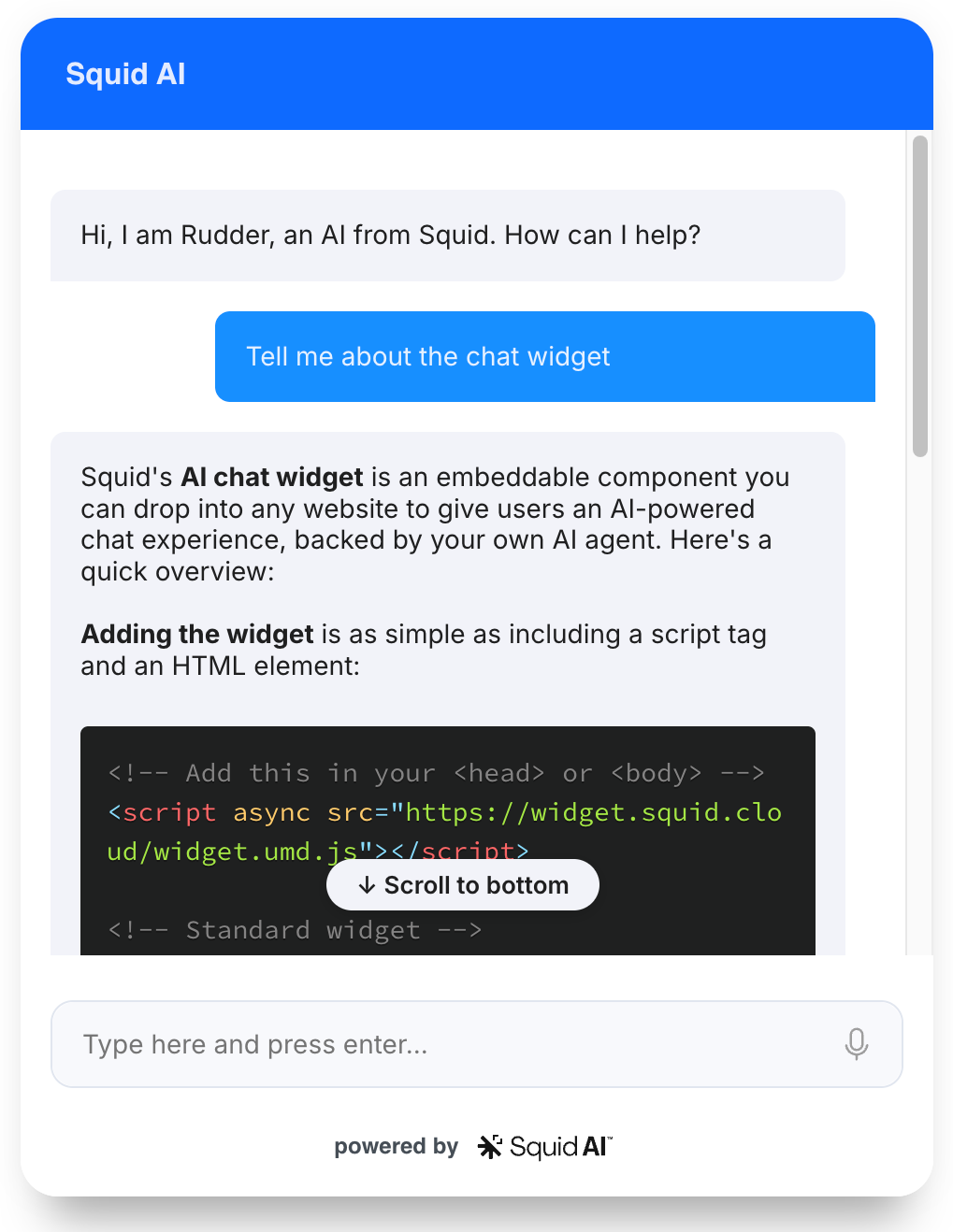
Drop a fully-featured AI chat experience into your website with a single HTML element.
Why Use the AI Chat Widget
You want users to chat with an AI agent on your site. The agent should know about your business, follow your security model, look like your brand, and ideally support voice input, predefined prompts, and chain-of-thought visualization.
Building this from scratch means writing a chat UI, wiring up streaming, handling history, integrating auth, and styling. The Squid AI chat widget gives you all of that as a single web component:
<script async src="https://widget.squid.cloud/widget.umd.js"></script>

<squid-chat-widget-with-fab-button
  squid-app-id="YOUR_APP_ID"
  squid-region="us-east-1.aws"
  squid-environment-id="prod"
  squid-ai-agent-id="YOUR_AGENT_ID"
></squid-chat-widget-with-fab-button>
That's a full AI chat experience: input box, history, streaming responses, and a floating action button (FAB) to open and close it.
You can play with this widget right now via the FAB in the bottom-right corner of the page.
Overview
The Squid AI chat widget is a self-contained web component that talks to a Squid AI agent (or directly to a Squid database integration via Query with AI; see the example below). It is shipped as a single UMD bundle hosted at https://widget.squid.cloud/widget.umd.js and rendered into Shadow DOM, so it does not collide with your site's styles.
Two element variants
| Element | Behavior |
|---|---|
<squid-chat-widget> | Inline chat block. Renders wherever you place it in the document. You control sizing and layout. |
<squid-chat-widget-with-fab-button> | Floating action button (FAB) in the bottom-right corner. Click to toggle the chat open or closed. |
Both elements accept the same set of attributes.
When to use the chat widget
| Use Case | Recommendation |
|---|---|
| Add an AI assistant to a marketing site or web app | The chat widget |
| Build a fully custom chat UI | Use the AI agent SDK directly |
| Embed a chat that asks questions about a specific database | The chat widget with squid-ai-query="true" and squid-ai-integration-id |
| Run programmatic AI calls without a UI | squid.ai().agent() or executeAiQuery |
Quick Start
Prerequisites
- A Squid application created in the Squid Console
- An AI agent created in the Agent Studio tab of your application
- The agent's ID, your Squid app ID, and the region (all available in Backend Project under Show env vars in the Squid Console)
Step 1: Create an AI agent
- In the Squid Console, open your application and click the Agent Studio tab
- Click Create New Agent
- Provide an Agent ID (this cannot be changed later) and a description
- Click Create
After the agent is created, add Instructions (rules for how the agent responds) and Knowledge base items (background context). You can test the agent right away with the Test chat button.
Squid provides separate dev and prod environments. AI agents are not shared between them. Make sure the squid-environment-id attribute on the widget matches the environment your agent was created in. See environments.
Step 2: Load the widget script
Add the widget script tag to the <head> or <body> of your HTML:
<script async src="https://widget.squid.cloud/widget.umd.js"></script>
Step 3: Render the widget
<squid-chat-widget-with-fab-button
  squid-app-id="YOUR_APP_ID"
  squid-region="us-east-1.aws"
  squid-environment-id="prod"
  squid-ai-agent-id="YOUR_AGENT_ID"
  header-title="Acme Assistant"
  intro-text="Hi! Ask me anything about Acme."
></squid-chat-widget-with-fab-button>
Replace YOUR_APP_ID, us-east-1.aws, and YOUR_AGENT_ID with your application's values.
Authentication and Configuration
Public vs private agents
An agent can be set to public or private in the Agent Studio (Agent Settings, scroll to Public agent).
- Public agents can be accessed by anyone. The widget needs no auth credentials.
- Private agents require an auth provider so Squid can verify the caller.
Securing a private agent
- Connect an auth provider to Squid
- Pass the
integrationIdof the auth provider and the user's auth token via thesquid-auth-providerattribute:
<squid-chat-widget
  squid-app-id="YOUR_APP_ID"
  squid-region="us-east-1.aws"
  squid-environment-id="prod"
  squid-ai-agent-id="YOUR_AGENT_ID"
  squid-auth-provider='{"integrationId": "AUTH_INTEGRATION_ID", "token": "AUTH_TOKEN"}'
></squid-chat-widget>
- Add a
@secureAiAgentrule on the backend to control who can chat:
- TypeScript
- Python
@secureAiAgent('chat')
allowAccessToAgent(): boolean {
  return this.isAuthenticated();
}
@secure_ai_agent('chat')
def allow_access_to_agent(self) -> bool:
    return self.is_authenticated()
A public agent bypasses @secureAiAgent rules entirely. Auth credentials are still made available to AI functions, so you can still gate specific function calls inside a public agent. See AI functions.
For conditional checks, agent-scoped rules, and Agent API Keys, see Securing AI agents and Agent API Keys.
For more details on the authentication flow, see authentication.
Enabling custom HTML elements in your framework
Some frontend frameworks need extra setup to allow custom HTML elements.
React (src/declarations.d.ts):
declare namespace JSX {
  interface IntrinsicElements {
    'squid-chat-widget': any;
    'squid-chat-widget-with-fab-button': any;
  }
}
Angular (src/app/app.module.ts):
import { CUSTOM_ELEMENTS_SCHEMA } from '@angular/core';

@NgModule({
  schemas: [CUSTOM_ELEMENTS_SCHEMA],
})
export class AppModule {}
For other frameworks, see your framework's documentation on enabling custom elements.
Core Concepts
Connection attributes
These attributes tell the widget how to reach Squid and which agent or integration to talk to.
| Attribute | Type | Required | Description |
|---|---|---|---|
squid-app-id | string | Yes (unless using squid-ai-custom-api-url) | Your Squid application ID |
squid-region | string | Yes (unless using squid-ai-custom-api-url) | AWS region for your application (e.g. us-east-1.aws) |
squid-environment-id | string | No (defaults to prod) | dev or prod. Must match the environment the agent lives in. |
squid-developer-id | string | No | Developer ID. Required only when running the backend locally. |
squid-api-key | string | No | Squid API key. Use only on trusted surfaces, never in user-facing pages. |
squid-ai-agent-id | string | Yes (unless squid-ai-query="true" or using squid-ai-custom-api-url) | The agent ID to chat with |
squid-ai-profile-id | string | No (deprecated) | Old name for squid-ai-agent-id. Logs a deprecation warning. Use squid-ai-agent-id instead. |
squid-ai-integration-id | string | Yes when squid-ai-query="true" | The database integration ID to query when running in Query with AI mode |
squid-ai-query | boolean | No | When true, the widget runs against a database integration via Query with AI instead of an agent |
squid-auth-provider | JSON | No | { "integrationId": "...", "token": "..." }. Required for private agents. |
squid-ai-custom-api-url | string | No | A custom HTTP endpoint that handles chat requests instead of going through Squid |
squid-ai-custom-api-headers | JSON | No | Extra headers sent with custom API URL requests |
Chat behavior attributes
| Attribute | Type | Description |
|---|---|---|
squid-ai-functions | string | Comma-separated list of AI function names to enable |
squid-ai-functions-json | JSON | Array of function objects with optional name, context, and predefinedParameters |
squid-ai-temperature | number | Temperature in [0, 1]. Lower is more deterministic. |
squid-ai-max-tokens | number | Maximum number of tokens for the LLM response |
squid-ai-override-model | string | Override the model the agent uses (e.g. gpt-5.5) |
squid-ai-context-metadata-filter | JSON | Metadata filter applied to knowledge base lookups. See filtering context. |
squid-ai-instructions | string | Instructions appended to the agent's system prompt for this widget instance |
squid-ai-connected-agents | JSON | Array of { agentId, description } for connected agents the agent can delegate to |
squid-ai-agent-chat-options | JSON | Advanced chat options object. See Advanced chat options below. |
squid-ai-enable-raw-results | boolean | When using squid-ai-query="true", request raw query result files |
squid-ai-enable-code-interpreter | boolean | When using squid-ai-query="true", enable the Python code interpreter for charts and analysis |
disable-history | boolean | Disable conversation memory across messages |
chain-of-thought | boolean | Show the agent's reasoning steps (tool calls, queries, function executions) |
show-status-tags | boolean | Show tag labels on chain-of-thought status updates |
observe-status | boolean | Observe live status updates from the backend |
include-reference | boolean | Show source references (citations) in agent responses |
enable-transcription | boolean | Show a microphone button so users can speak their prompts |
predefined-prompts | string | Suggested prompts shown to the user. Comma- or newline-separated, or a JSON-stringified array. |
enable-debug-logs | boolean | Print debug logs to the browser console |
Display and customization attributes
| Attribute | Type | Description |
|---|---|---|
header-title | string | Title text in the chat header. Defaults to SquidAI Chat. |
intro-text | string | First message shown to the user when the chat opens |
avatar-image-url | string | URL of the avatar image shown next to AI messages |
chat-icon-url | string | Custom icon for the floating action button |
widget-width | string | CSS width value (e.g. 400px) |
widget-height | string | CSS height value (e.g. 600px) |
theme | string | light or dark. Defaults to light. |
rtl-mode | boolean | Enable right-to-left layout for languages like Arabic and Hebrew |
use-maximize-button | boolean | Show a maximize/minimize button. Only meaningful in FAB mode. |
open-on-load | boolean | Auto-open the FAB widget when the page loads |
powered-by-text | string | Override the "Powered by Squid" footer text |
menu-items-json | JSON | Array of { title, slotName } objects defining custom menu items. See Custom menu items. |
base-stylesheet-url | string | Override the base CSS file. Defaults to https://widget.squid.cloud/style.css. |
stylesheet-url | string | Additional CSS file loaded on top of the base stylesheet |
error-formatter | string or function | 'generic-error', 'original-error' (default), or a JS function (error) => string |
Localization attributes
The widget exposes a set of attributes for replacing built-in UI strings:
| Attribute | Default |
|---|---|
text-placeholder | "Type here and press enter..." |
text-thinking | "Thinking..." |
text-thought-for | "Thought for" |
text-suggested-prompts | "Suggested Prompts" |
text-suggested-prompts-description | "Explore what this agent can do with a few examples." |
text-milliseconds | "milliseconds" |
text-seconds | "seconds" |
text-minutes | "minutes" |
Advanced chat options
squid-ai-agent-chat-options accepts a JSON object that maps to the agent chat options interface. Common fields:
| Field | Description |
|---|---|
agentContext | An object passed to every AI function call. See passing context to AI functions. |
instructions | A string appended to the agent's system instructions for this widget instance |
contextMetadataFilterForKnowledgeBase | An object that restricts which knowledge base entries are used. See filtering context. |
functions | An array of function descriptors with optional predefinedParameters and per-function context |
memoryOptions | Conversation memory configuration: memoryId, memoryMode |
temperature | Sampling temperature |
model | Override the model used by this widget instance |
Example:
<squid-chat-widget
  squid-app-id="YOUR_APP_ID"
  squid-region="us-east-1.aws"
  squid-ai-agent-id="YOUR_AGENT_ID"
  squid-ai-agent-chat-options='{
    "agentContext": { "tenantId": "acme" },
    "instructions": "Always reply in Spanish.",
    "contextMetadataFilterForKnowledgeBase": {
      "product-docs": { "version": "v2" }
    },
    "memoryOptions": { "memoryMode": "read-write", "memoryId": "session-123" }
  }'
></squid-chat-widget>
Custom menu items
menu-items-json defines extra entries in the chat header menu. Each entry has a title and a slotName. Provide content for each slot using the standard slot= attribute on a child element.
<squid-chat-widget
  squid-app-id="YOUR_APP_ID"
  squid-region="us-east-1.aws"
  squid-ai-agent-id="YOUR_AGENT_ID"
  menu-items-json='[
    { "title": "Documentation", "slotName": "docs" },
    { "title": "Contact us", "slotName": "contact" }
  ]'
>
  <div slot="docs">
    <h3>Documentation</h3>
    <p>Read our docs at <a href="https://docs.example.com">docs.example.com</a>.</p>
  </div>
  <div slot="contact">
    <h3>Contact us</h3>
    <p>Email <a href="mailto:hello@example.com">hello@example.com</a></p>
  </div>
</squid-chat-widget>
CSS variables
The widget renders inside Shadow DOM. Override its appearance by setting CSS custom properties on the host element. Each variable falls back to the widget's default theme.
| Variable | Controls |
|---|---|
--squid-widget-header-background-color | Header background |
--squid-widget-header-title-color | Header title text color |
--squid-widget-header-menu-button-background-color | Menu button background |
--squid-widget-header-menu-button-icon-url | Menu button icon image URL |
--squid-widget-header-menu-item-color | Menu item text color |
--squid-widget-header-menu-item-hover-background-color | Menu item hover background |
--squid-widget-menu-item-back-icon-url | Back button icon for sub-menus |
--squid-widget-body-background-color | Chat body background |
--squid-widget-ai-message-background-color | AI message bubble background |
--squid-widget-ai-message-text-color | AI message text color |
--squid-widget-user-message-background-color | User message bubble background |
--squid-widget-user-message-color | User message text color |
--squid-widget-textarea-background-color | Input textarea background |
--squid-widget-textarea-border-color | Input textarea border |
--squid-widget-textarea-text-color | Input textarea text color |
--squid-widget-textarea-submit-image-url | Submit button icon image URL |
--squid-widget-inline-code-background-color | Inline code block background |
--squid-widget-inline-code-border-color | Inline code block border |
--squid-widget-link-color | Hyperlink color |
--squid-widget-powered-by-color | "Powered by" footer text color |
--squid-widget-fab-background-color | FAB button background |
--squid-widget-fab-image-url | FAB button icon (closed state) |
--squid-widget-fab-close-image-url | FAB button icon (open state) |
Example using inline style:
<squid-chat-widget
  squid-app-id="YOUR_APP_ID"
  squid-region="us-east-1.aws"
  squid-ai-agent-id="YOUR_AGENT_ID"
  style="
    --squid-widget-header-background-color: #1a73e8;
    --squid-widget-ai-message-background-color: #e8f0fe;
    --squid-widget-user-message-background-color: #1a73e8;
    --squid-widget-user-message-color: #ffffff;
  "
></squid-chat-widget>
You can also use the class attribute to apply your own external stylesheet rules.
Listening for events
The widget dispatches a change CustomEvent whenever the chat history or status updates change. Two payload shapes are supported:
const widget = document.querySelector('squid-chat-widget')!;

widget.addEventListener('change', (event: CustomEvent) => {
  if (event.detail.type === 'history') {
    // event.detail.history is an array of ChatMessage objects
    console.log('History updated:', event.detail.history);
  } else if (event.detail.type === 'status') {
    // event.detail.status is an array of AiStatusMessage objects
    console.log('Status updated:', event.detail.status);
  }
});
In React, pass an onChange callback prop instead:
<SquidChatWidgetWithFabButtonEntryPoint
  squidAppId="YOUR_APP_ID"
  squidRegion="us-east-1.aws"
  squidAiAgentId="YOUR_AGENT_ID"
  onChange={(event) => {
    console.log(event.detail);
  }}
/>
Code Examples
Override parameters on an AI function
When you want certain parameters fixed and not chosen by the AI, use predefinedParameters via squid-ai-functions-json. See overriding parameter values for the matching backend pattern.
<squid-chat-widget
  squid-app-id="YOUR_APP_ID"
  squid-region="us-east-1.aws"
  squid-ai-agent-id="YOUR_AGENT_ID"
  squid-ai-functions-json='[
    { "name": "saveSection", "predefinedParameters": { "sectionId": "introduction" } }
  ]'
></squid-chat-widget>
Pass agent context to backend functions
Use the agentContext field of squid-ai-agent-chat-options to attach values that every AI function call can read on the backend. The companion backend pattern is documented in passing context to AI functions.
<squid-chat-widget
  squid-app-id="YOUR_APP_ID"
  squid-region="us-east-1.aws"
  squid-ai-agent-id="YOUR_AGENT_ID"
  squid-ai-agent-chat-options='{
    "agentContext": { "documentId": "doc-42" },
    "functions": [
      { "name": "saveSection", "context": { "codenameList": ["LITANIA", "LEOPARD"] } }
    ]
  }'
></squid-chat-widget>
Chat against a database with Query with AI
Set squid-ai-query="true" and provide a database integration ID instead of an agent ID. See Query with AI for the underlying feature.
<squid-chat-widget
  squid-app-id="YOUR_APP_ID"
  squid-region="us-east-1.aws"
  squid-ai-query="true"
  squid-ai-integration-id="postgres"
  squid-ai-enable-code-interpreter="true"
  predefined-prompts='[
    "How many users signed up last week?",
    "Show me a chart of orders per region.",
    "Which products had no sales this month?"
  ]'
></squid-chat-widget>
Custom backend webhook
Route the chat through your own backend with squid-ai-custom-api-url. The widget posts the prompt to that URL; you handle the response.
<squid-chat-widget
  squid-ai-custom-api-url="https://YOUR_APP-prod.us-east-1.aws.squid.cloud/webhooks/chat?projectId=YOUR_PROJECT_ID"
></squid-chat-widget>
- TypeScript
- Python
import { webhook, SquidService, WebhookRequest } from '@squidcloud/backend';

interface ChatRequest {
  prompt: string;
}

interface ChatResponse {
  response: string;
}

export class ChatService extends SquidService {
  @webhook('chat')
  async chat(request: WebhookRequest<ChatRequest>): Promise<ChatResponse> {
    const userPrompt = request.body.prompt;
    const projectId = request.queryParams['projectId'];

    // Custom logic to handle the user prompt and project ID.
    return { response: `Echo: ${userPrompt}` };
  }
}
from squidcloud_backend import SquidService, WebhookRequest, WebhookResponse, webhook


class ChatService(SquidService):
    @webhook('chat')
    async def chat(self, request: WebhookRequest) -> WebhookResponse:
        user_prompt = request['body']['prompt']
        project_id = request.get('queryParams', {}).get('projectId')

        # Custom logic to handle the user prompt and project ID.
        return self.create_webhook_response(body={'response': f'Echo: {user_prompt}'})
Programmatic creation in JavaScript
const widget = document.createElement('squid-chat-widget');
widget.setAttribute('squid-app-id', 'YOUR_APP_ID');
widget.setAttribute('squid-region', 'us-east-1.aws');
widget.setAttribute('squid-ai-agent-id', 'YOUR_AGENT_ID');
widget.setAttribute('header-title', 'Acme Assistant');
widget.setAttribute('squid-ai-agent-chat-options', JSON.stringify({ memoryOptions: { memoryMode: 'read-write', memoryId: 'session-1' } }));

// Function-typed props are set as DOM properties, not attributes.
(widget as any)['error-formatter'] = (error: unknown) => `Something went wrong: ${error}`;

document.body.appendChild(widget);
Error Handling
Common errors
| Error | Cause | Solution |
|---|---|---|
squid-app-id must be specified | Missing squid-app-id attribute | Add squid-app-id (or use squid-ai-custom-api-url) |
squid-region must be specified | Missing squid-region attribute | Add squid-region |
squid-ai-agent-id must be specified or squid-ai-query must be true | No agent ID and not running in query mode | Add squid-ai-agent-id, or set squid-ai-query="true" plus squid-ai-integration-id |
squid-ai-integration-id must be specified when using squid-ai-query | squid-ai-query="true" without an integration ID | Add squid-ai-integration-id |
squid-ai-profile-id is deprecated, use squid-ai-agent-id instead | Using the legacy attribute name | Rename to squid-ai-agent-id |
UNAUTHORIZED from the backend | Private agent, no auth provider, or @secureAiAgent denied | Set squid-auth-provider and verify the @secureAiAgent rule |
| Custom HTML element not recognized | Framework needs custom element registration | See Enabling custom HTML elements in your framework |
Use enable-debug-logs="true" to print extra information to the browser console while diagnosing issues.
Customize error display
Use error-formatter to control how errors are shown to the user. The built-in values are 'generic-error' (a single shared message) and 'original-error' (the actual error message, default). You can also pass a function:
const widget = document.querySelector('squid-chat-widget')!;
(widget as any)['error-formatter'] = (error: unknown) => {
  if (error instanceof Error) return error.message;
  return 'Something went wrong. Please try again.';
};
Best Practices
- Keep
squid-app-idandsquid-regionin HTML, never API keys. The chat widget runs in the browser. Anything you put insquid-api-keyis visible to anyone viewing the page. For private agents, usesquid-auth-providerand@secureAiAgentinstead. - Use
squid-ai-agent-id, notsquid-ai-profile-id. The latter is deprecated and logs a warning. - Match
squid-environment-idto the agent's environment. Agents created indevare not visible inprodand vice versa. - Apply security rules on the backend even when the agent is public. Public agents skip
@secureAiAgent, but@secureAiQueryand AI function auth checks still run. - Set
chain-of-thought="true"during development to see exactly what the agent is doing. Turn it off (or leave it on withshow-status-tags="false") for end users. - Cache CSS overrides in your own stylesheet rather than inlining them with
style=, so multiple widget instances stay in sync. - Listen to
changeevents if you want to persist conversation history outside the widget or feed it into product analytics.
See Also
- AI agent - Create and configure agents the widget connects to
- AI functions - Backend functions the agent can call during a conversation
- Query with AI - Use the widget to ask questions about a database
- Authentication - Connect an auth provider for private agents
- Building a vacation packing planner using an AI agent - End-to-end tutorial
- Creating a Squid expert using a Squid AI Agent
- Securing your AI agent