Environments
Squid provides two environments for your work – dev and prod.
When you create a new application, Squid automatically sets up a dev and a prod environment. Use the dev environment for your development and testing. The prod environment is for when you're ready to take your application live.
Identifiers
| Resource | Shared |
|---|---|
| App ID | ✓ |
| Region | ✓ |
| Organization | ✓ |
| Developer ID | ✓ |
| API Keys | × |
Entities
| Resource | Shared |
|---|---|
| AI Agents | × |
| Connectors | × |
| Secrets | × |
| Built-in database | × |
| Backend deployments | × |
Environments and connectors
When toggling between the dev and prod versions of your app in the Squid Console, you will notice that each has a different set of connectors.
To prevent unwanted changes to your production app's functionality, the connectors in your dev and prod environments are not synced. When adding a connector to your Squid app, confirm that you are adding it to the desired environment.
Connect your dev environment with development versions of your connectors. This allows you to build and test functionality without modifying the production version of your application.
If you choose the same connector ID for a given connector in both your dev and prod environments, you can develop in dev and then push to prod without having to change any variables in your code.
The dev environment is a complete backend application separate from your prod environment's application.
Selecting your environment
Environments in the console
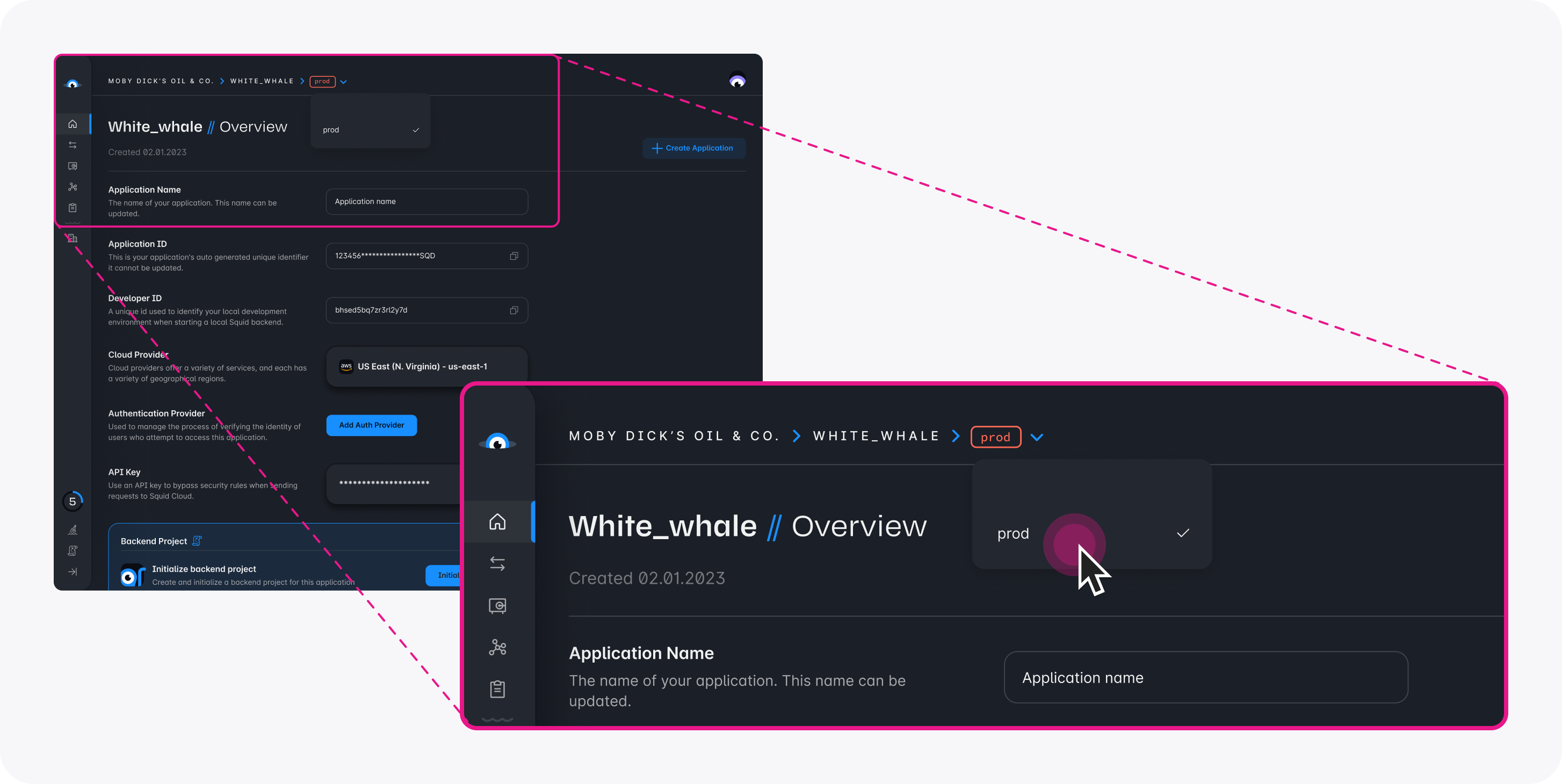
Verify you are in the correct environment before adding or managing connectors in the console. To toggle between environments in the Squid Console, select the environment name at the top of the console, and then select the environment you want to display.
Environments during development
By default, the environmentId and apiKey in your .env file is set to dev, so if you run commands without these flags, the command defaults to the dev environment.
To change your environment in your app's frontend, use the appropriate environmentId value in your Squid context:
<SquidContextProvider
  options={{
    appId: 'YOUR_APP_ID',
    region: 'YOUR_REGION', // example: 'us-east-1.aws'
    environmentId: 'dev', // or 'prod'
  }}
>
  <App />
</SquidContextProvider>
Key environment variables
Environment variables, also called "envars", are essential for configuring and operating your application in both the development and production environments.
- SQUID_APP_ID: Your unique Squid application identifier. (
--appIdwhen using in the command line) - SQUID_REGION: Specifies the region, such as 'us-east-1.aws'. (
--regionwhen using in the command line) - SQUID_ENVIRONMENT_ID: Indicates the working environment, either 'dev' or 'prod'. (
--environmentIdwhen using in the command line) - SQUID_API_KEY: A distinct key for API access, different for each environment. (
--apiKeywhen using in the command line) - SQUID_DEVELOPER_ID: Necessary for running the Squid backend locally, accessible in the
.envfile or Squid Console. (--squidDeveloperIdwhen using in the command line)
For automated deployments using tools like Netlify or GitHub Actions, we recommended setting these environment variables directly on the deployment machine or within the deployment tool's configuration. This approach ensures better security and management of sensitive information, such as the API Key.
Setting variables on the deployment machine or process also allows for a clear separation between development and production configurations.
Security considerations
Exercise caution with sensitive variables, particularly the API Key. To avoid security risks, it should never be exposed in the client-side code. Always manage such critical information securely, either on the server or within protected environment variables.
Locate envars in the console
For ease of management, you can copy environment variables from the Squid Console. This feature is helpful for setting up your variables accurately for both development and deployment purposes. The Show env vars button in the Squid Console is a convenient tool for accessing these variables.
You may also want to click on the "Create .env file" button to generate a .env file for local development.