Microsoft Azure Blob Storage
Connect your Azure Blob Storage container to Squid
To access your Azure Blob Storage container through Squid, first add the connector through the Squid Console.
-
In your Azure account, copy the storage account's connection string. In the Azure Portal, navigate to your Storage Account, then Security + networking > Access keys > Connection string.
-
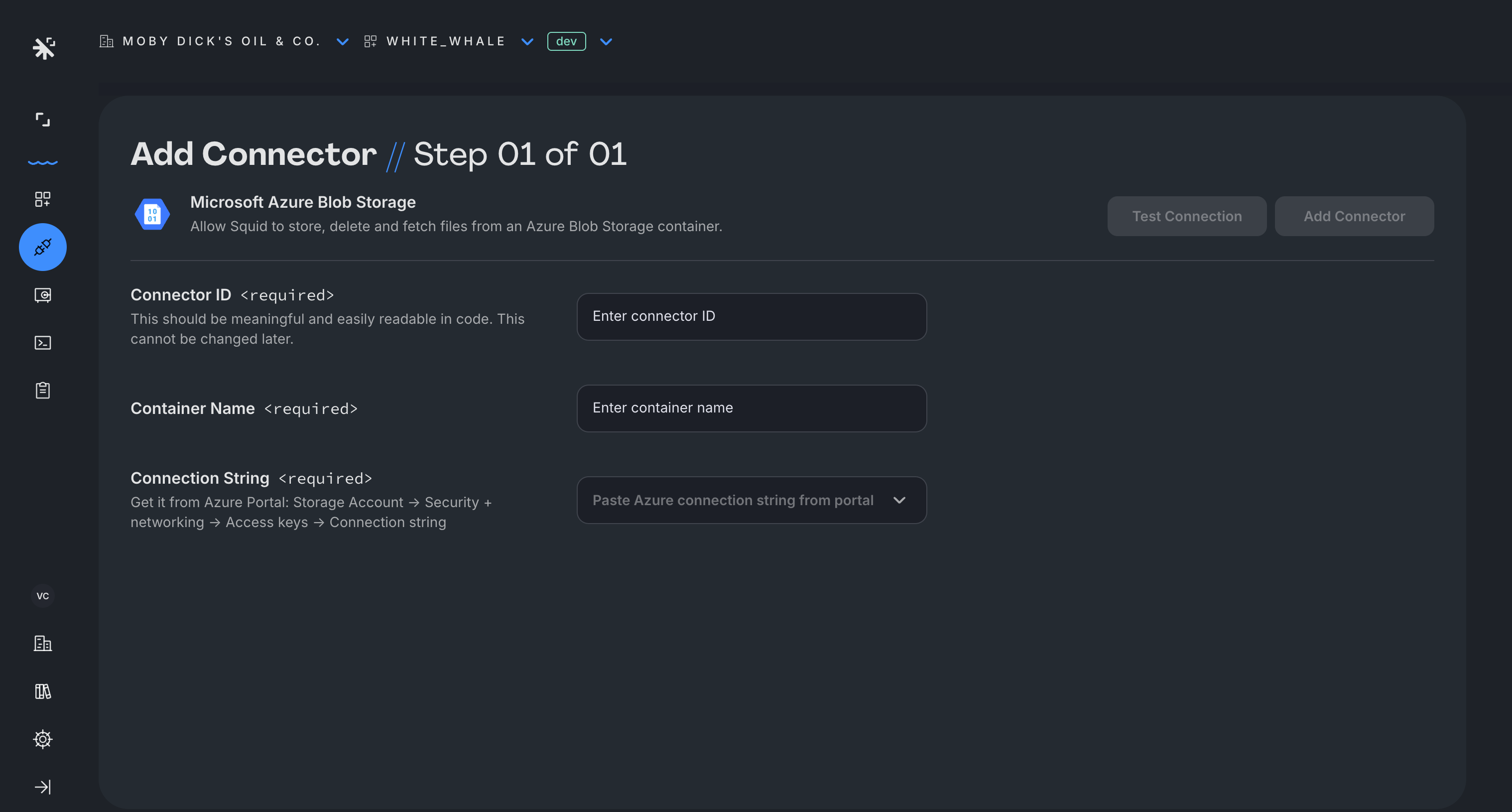
In the Squid Console, navigate to the Connectors page and select the Microsoft Azure Blob Storage connector.
-
Provide the following details:
- Connector ID - Choose an ID that is brief and helps identify the connector.
- Container Name - The name of the blob container to connect.
- Connection String - The connection string from the Azure Portal. This is securely stored in Squid Secrets.
-
Click Test connection to verify the connector information. Once verified, click Add connector.
To access the storage container from the client, create a reference to a Storage Client using the storage() method, passing your storage connector ID:
const storage = squid.storage('YOUR_STORAGE_CONNECTOR_ID');
With this storage instance, you can upload files, read metadata, generate download URLs, and download content, which are the same operations available with all Squid storage connectors. To learn more about managing files from the client, view the Squid storage documentation.
If your Squid application is hosted in an Azure region, Squid also provides a built-in Azure Blob Storage connector that is provisioned automatically, with no configuration required. It is available alongside the other built-in storage options; see built-in storage.